What to Check Before Moving Your Files to a New Computer
Before you check before moving your files to a new computer, pause long enough to identify what you actually need, what must stay private, and what could be lost during a rushed transfer. Documents are only part of the picture; browser bookmarks, email archives, application settings, passwords, and license details may matter just as much.
A little preparation protects your memories, work, and access to important accounts. You’ll also avoid filling the new machine with clutter, carrying malware across, or discovering that an old program cannot run on the new operating system.
1. Make a Complete Inventory of What You Need
Start with a written inventory rather than dragging folders at random. Open the old computer’s main storage and note the locations of your documents, photographs, videos, music, downloads, desktop files, and project folders. People often forget files saved outside the usual Documents or Pictures folders, especially items placed on the desktop during a busy period.
Look for less obvious data too. Email archives may be stored locally in formats such as PST, OST, MBOX, or EML, depending on the email application.
Browser bookmarks might be synchronised to an account, saved in an export file, or stored only on the old machine. Check accounting records, saved game data, design templates, scanned receipts, tax documents, and folders used by specialist software.
A simple inventory can include four columns: item, current location, destination, and status. For example, “family photographs,” “external hard drive,” “Pictures,” and “copied.” This gives you a way to confirm progress instead of relying on memory.
- Personal files: photos, videos, music, documents, and downloads.
- Work material: spreadsheets, presentations, databases, client folders, and templates.
- Application data: saved settings, presets, local mail, databases, and game saves.
- Access information: passwords, recovery codes, encryption keys, and license records.
Common mistake to avoid: assuming that everything important is inside one user folder. Some applications save data in hidden directories, shared folders, or a separate drive. Search by file type and by project name, then open a sample of important folders to confirm they contain the expected material.
2. Check Storage, Hardware, and Operating System Compatibility
Before copying anything, compare the old computer’s used storage with the new computer’s available disk space. The number shown in a folder’s properties may not tell the whole story: the new system also needs room for the operating system, applications, temporary files, updates, and future work. A transfer that technically fits today may leave the new machine cramped immediately.
Check the capacity of the source and destination drives, and remember that advertised storage is usually larger than the usable amount shown by the operating system. If your old computer has 700 GB of files and the new device has only 512 GB of storage, the move needs careful sorting rather than a direct copy. Remove duplicate videos, obsolete installers, and temporary downloads first, but don’t delete anything important until a verified backup exists.
Operating system compatibility deserves its own check. A program designed for an older version of Windows may need an update, compatibility mode, or a replacement on a newer system.
The same issue appears when moving between Windows and macOS, or between Intel-based and ARM-based computers. File formats may open normally even when the application that created them does not.
Review the following before the transfer:
- Available disk space on the new computer.
- External drive capacity and connection type.
- Operating system compatibility for essential programs.
- Hardware needs for printers, scanners, card readers, and specialist devices.
- Whether old file formats require conversion or an additional application.
Common mistake to avoid: treating the new computer’s storage capacity as a simple match for the old one. Leave meaningful free space and confirm that the programs used to open your most important files will work before you erase or recycle the old device.
3. Create and Test a Data Backup Before Touching the Original
A file transfer is not the same as a data backup. During a move, files can be overwritten, interrupted, corrupted, or accidentally deleted.
Create at least one separate copy before you begin, and ideally keep another copy in a different place. An external hard drive is useful for a large local backup, while cloud storage can provide an off-site copy if your internet connection and storage plan support the amount of data involved.
Use a backup method that preserves the original files. Copy rather than move.
If the operating system offers a backup utility, configure it to include user folders and any additional locations that contain application data. For especially valuable material, make a second copy and disconnect the backup drive when it isn’t being used; this reduces the risk that ransomware or a mistaken command will affect every copy at once.
Testing matters as much as creating the backup. Open several documents, photographs, videos, and project files directly from the backup.
Check that file names, folder structure, and dates look sensible. If you use a backup application, review its completion report instead of assuming that a finished progress bar means every item was included.
Official instructions can vary by platform, so use a trusted reference such as Microsoft’s Windows backup and restore information when checking built-in options.
Common mistake to avoid: keeping the only backup plugged into the computer throughout the entire move. If a problem occurs, you may lose both the source files and the safety copy. Label the backup clearly, record its date, and keep it untouched until the new computer has been checked.
4. Secure Accounts, Passwords, and Encryption Keys
Moving files can expose sensitive information if you don’t prepare your accounts first. Make a list of the services you use on the old computer, including email, cloud storage, banking, work systems, social networks, creative software, and password manager accounts. Confirm that you know the primary login details and that the recovery email address or phone number still works.
A password manager can make this process much safer than storing credentials in a spreadsheet or an unprotected text file. Confirm that the manager is synchronised, then verify that you can sign in on a separate device or through its web vault. If your passwords exist only in a local database, export an encrypted copy according to the manager’s instructions and protect it with a strong passphrase.
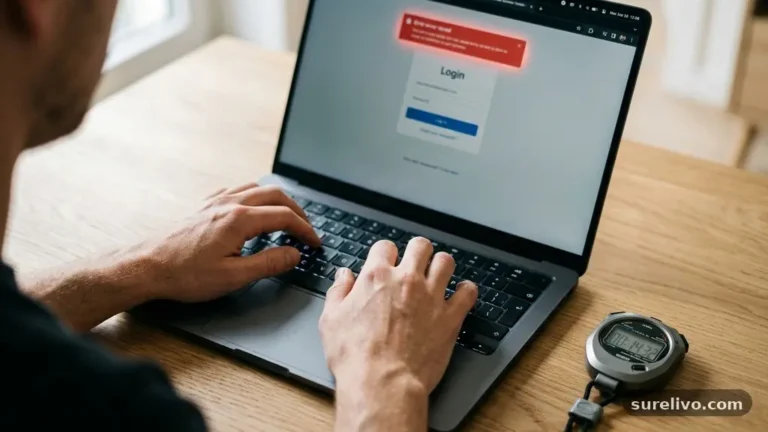
Two-factor authentication requires extra planning. New devices may ask for an approval from the old computer, a security key, an authenticator app, or a one-time recovery code.
Before wiping the old system, make sure your authenticator can be transferred or that you have valid backup codes. Don’t disable two-factor authentication simply to make the move easier.
Encryption keys deserve special attention. Files protected by BitLocker, FileVault, VeraCrypt, encrypted archives, or specialist software may be unreadable without the correct recovery key or passphrase.
Store recovery information somewhere safe and separate from the computer being replaced. If a work device is involved, ask the organisation’s administrator before exporting anything.
Common mistake to avoid: assuming that a browser’s saved passwords will automatically appear on the new computer. Sync may be disabled, the account may be different, or the data may be encrypted behind a device-specific key. Test access before the old machine is reset.
5. Review Applications, Licenses, and User Accounts
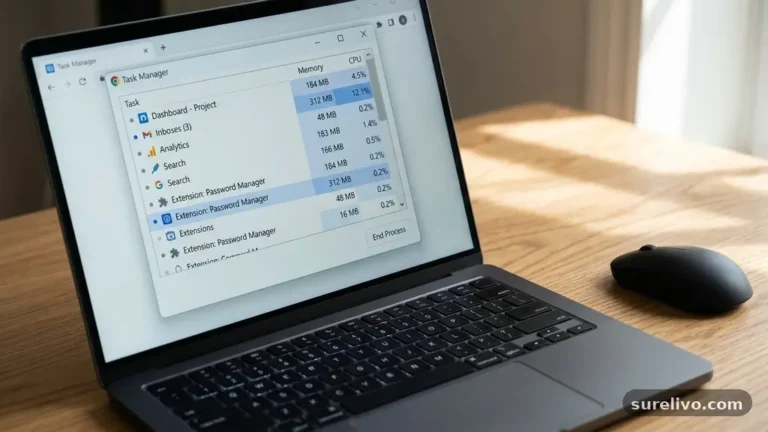
Files often depend on the applications that created them. Write down the names and versions of programs you rely on, then identify which ones need a fresh download, a subscription login, a product key, or a deactivation on the old computer. Application licenses may limit the number of active devices, so moving without checking can leave you unable to activate the software on the new machine.
Prioritise essential programs first: office software, accounting tools, photo and video editors, development environments, communication apps, and specialist work applications. Find installation files only from the vendor or an approved company source. Old installers copied from the previous computer may be unsafe, incompatible, or missing required components.
Review user accounts as well. A family computer may contain separate profiles, each with its own Desktop, Documents, browser data, email settings, and permissions.
Work machines can include managed accounts that should not be copied into a personal system. Decide whether the new computer needs one account or several, and create the correct profiles before importing files.
Some applications store valuable settings in hidden folders or configuration files. Export templates, presets, macros, custom dictionaries, fonts, and add-ons where the application supports it.
For email programs, identify whether messages are held on a server or inside local email archives. A cloud-based mailbox may simply need a new sign-in, while a local archive needs a deliberate export and import.
Common mistake to avoid: copying a program folder and expecting the application to work. Many programs require registry entries, system components, permissions, services, or an installer. Reinstall the application, activate it properly, and then bring across its supported data files.
6. Clean, Organise, and Scan the Files Before Transfer
Use the move as a chance to reduce clutter, but work carefully. Group loose files into understandable folders, rename vague items such as “final2” or “new document,” and separate personal material from work or shared data. A clear structure on the new computer makes future backups easier and reduces the chance that you’ll save important files in random locations.
Remove obvious duplicates and temporary files after reviewing them. Downloads often contain multiple copies of installers, compressed archives, and documents that were saved once and never opened again.
Don’t treat every large file as disposable, though. Video projects, virtual machines, database files, and raw photographs can be large for good reasons.
Run a malware scan before transferring anything, especially if the old computer has behaved strangely, displayed unexpected pop-ups, or contains files downloaded from unknown sources. Update the security software first and scan the folders you plan to copy. If the computer is suspected of serious infection, avoid connecting the backup drive until you’ve received appropriate technical help; malware can spread to removable storage.
Pay attention to file permissions. Files copied from another user account, an old workplace profile, or an encrypted directory may appear present but remain inaccessible on the new computer.
Rather than broadly changing permissions, determine who should own the files and apply the least access necessary. This matters particularly for shared folders and confidential records.
Common mistake to avoid: cleaning by pressing “delete” before the backup has been verified. Use a temporary holding folder or move unwanted items to a separate archive first. Once the new computer has been checked, you can remove the archive with much greater confidence.
7. Choose the Transfer Method and Verify the New Computer
Select a transfer method based on the amount and sensitivity of your data. A direct cable connection can be convenient for two nearby computers, an external hard drive works well for large collections, and cloud storage is practical for selected files or devices with reliable broadband. File transfer software may help preserve folder structure or guide a migration, but only use software from a reputable provider and understand what it copies.
For a manual transfer, copy folders in manageable groups instead of starting one enormous operation. Begin with a small, non-critical batch and confirm that it arrives correctly.
Compare folder sizes, file counts, and a sample of files at the destination. If the transfer tool provides checksums or verification, enable that feature; matching file names alone doesn’t prove that the contents are intact.
Once the files arrive, sign in to the new user accounts and test real tasks. Open a spreadsheet, edit a photograph, play a video, search an email archive, visit a bookmarked website, and print a document if printing matters to you. Check that cloud storage is syncing to the intended folder rather than downloading everything into a location with limited disk space.
Keep the old computer available for a while. Don’t factory-reset it on transfer day.
A forgotten tax file or application setting often surfaces only after normal work resumes. After several successful checks, confirm that the new system has current security updates, a working data backup, and the correct recovery information before retiring the old device.
Common mistake to avoid: judging success by seeing folders on the new desktop. A folder can exist while individual files are missing, corrupted, blocked by permissions, or dependent on an application that hasn’t been installed. Test the files you actually use.
Frequently Asked Questions
Should I move files by copying or dragging them?
Copying is safer because the original remains available if the transfer fails. Dragging between drives may copy in some situations, but moving within the same drive can remove the original location. Use copy and paste for the first transfer, then verify the destination before deleting anything from the old computer.
How long should I keep the old computer?
Keep it until you’ve used the new computer for normal tasks and confirmed that important files, accounts, applications, and backups work. This may be several days or longer for a work system with infrequently used records. Until then, keep the old machine powered off when not needed and avoid making new changes that exist nowhere else.
Can cloud storage replace a local backup?
Cloud storage can be an excellent off-site copy, but it shouldn’t automatically be treated as the only backup. Sync services may mirror accidental deletions or damaged files, and access depends on your account and internet connection. For irreplaceable material, keep a separate local backup as well and check the provider’s version history or recovery features.
What if the new computer has less storage?
Prioritise active files and archive older material to a properly labelled external hard drive or suitable cloud storage. Remove duplicates only after confirming a backup. You can also review large media folders, downloaded installers, and application caches, but don’t delete databases, project assets, or email archives simply because they take up space.
Do I need specialist file transfer software?
Not always. Manual copying is often enough for documents, photographs, and other ordinary files.
Specialist software may save time when migrating many user accounts or preserving settings, but check its scope, privacy practices, and compatibility first. A tool that copies files but misses licenses, encryption keys, or application data may create a false sense of completion.
Make the Move With Confidence
Good preparation turns a stressful computer change into a controlled handover. Check your inventory, confirm storage and compatibility, create and test a data backup, secure account access, scan and organise files, then verify the transfer through real tasks rather than appearances alone.
Take one final pause to check before moving your files to a new computer, and keep the old system available until the new one proves dependable. If you’ve developed a useful transfer checklist or discovered a detail people commonly miss, share it with someone preparing for their own move.