How to Build a Simple Monthly Digital Maintenance Routine
Building a Simple Monthly Digital Maintenance Routine gives your files, devices, accounts, and online habits a manageable reset point. Instead of waiting for a full inbox, a nearly full phone, or a suspicious login to force action, you spend a short, focused session keeping digital clutter under control.
A good routine doesn’t require technical expertise or an entire weekend. With a repeatable checklist, you can protect important information, recover storage space, strengthen account security, and make your devices feel calmer and easier to use.
1. Set a monthly maintenance date and make a quick inventory
The first step is to give your digital maintenance routine a reliable place on the calendar. Choose a date that naturally fits your month, such as the first Saturday morning or the last weekday afternoon, and block out enough time for a focused session. Thirty to sixty minutes is often enough for ordinary upkeep, while a first-time cleanup may take longer.
Before changing anything, make a quick inventory of the digital areas you use. Write down your primary computer, phone, tablet, email accounts, cloud storage services, password manager, web browsers, and any business or family accounts that matter. This list prevents the common problem of maintaining the device in front of you while forgetting the account that holds your most important documents.
Divide the session into three categories: maintenance, security, and cleanup. Maintenance includes software updates and backup checks.
Security covers passwords, account access, and privacy settings. Cleanup includes file organization, email inbox cleanup, and device storage management.
Keep a small record of what you completed and what needs attention next month. A notes app, paper checklist, or recurring task will work. Common mistake to avoid: making the routine so ambitious that you postpone it. A short, repeatable appointment is more useful than a perfect plan you never follow.
2. Review files and complete a monthly digital declutter
Start your cleanup by reviewing the files created or downloaded since the previous session. Open the Downloads folder, desktop, screenshots folder, and any temporary work area.
Delete duplicate images, outdated installers, unused PDFs, and files that were only needed for a single task. If something matters, move it to a clear long-term location rather than leaving it mixed with temporary items.
Good file organization depends on simple decisions that you can repeat. Use broad folders such as Personal, Work, Finance, Photos, and Projects, then add subfolders only when the volume justifies them. A filename such as 2026-03-home-insurance-policy.pdf tells you more than a vague label like document-final-new.pdf, especially when you search months later.
Photos deserve their own small process. Remove obvious duplicates, mark important images as favourites, and create albums for events or people instead of keeping every picture in one endless camera roll. Don’t delete sentimental or legally important material simply because it hasn’t been opened recently; archive it first or confirm that another copy exists.
A monthly digital declutter should reduce friction, not become a search for perfection. Set a timer and deal with the most visible clutter first. Common mistake to avoid: deleting files before checking whether they exist in a backup or shared folder. If you’re uncertain, place them in a temporary “Review” folder and decide during the next session.
3. Clean up cloud storage and confirm what is actually synced
Cloud storage cleanup is easiest when you examine both the contents and the syncing behaviour. Sign in to services such as Google Drive, OneDrive, iCloud, Dropbox, or a workplace platform, then sort files by size and recent activity where that option is available. Large videos, old device backups, duplicate folders, and abandoned shared files often consume more space than everyday documents.
Check the rubbish or recently deleted area as well. Many services retain deleted material for a limited period, so removing it permanently can release capacity. Before doing so, confirm that no one else needs a shared document and that a file isn’t the only copy of a tax record, contract, medical document, or family photograph.
Sync icons can be misleading. A file may appear on your laptop because it is downloaded locally, while another folder may be visible only online.
Review which folders are available offline, whether your phone is uploading photos, and whether a work account is connected to a personal device. This is also a useful moment to remove old computers, phones, or tablets from cloud account security settings if they are no longer yours.
Create a simple rule for future storage. For example, active projects stay in the main drive, completed projects move to an archive folder, and temporary transfers are deleted after confirmation. Common mistake to avoid: treating cloud sync as a complete backup. Syncing usually copies changes, including deletions, so it may not protect you from accidental removal or file corruption.
4. Perform backup verification instead of assuming backups work
A backup deserves attention only if it can restore something you need. During each monthly session, check that your computer and phone have completed their latest backups, then look at the backup date and the account or drive receiving the data. A green status indicator is helpful, but it isn’t proof that the right folders are included.
Perform a small restoration test every month or two. Choose a non-critical photo or document, download it from the backup service, and open it on another device if possible.
For a local external drive, confirm that it is recognised and that recent files have updated. These simple checks expose disconnected drives, expired subscriptions, full storage quotas, and backup software that stopped running after a password change.
Use more than one kind of copy for irreplaceable material. A practical arrangement might include working files on a computer, an automated cloud copy, and an external drive stored separately from the device. The exact setup depends on your needs, but keeping every copy in the same room or attached to the same account leaves a single theft, failure, or ransomware incident capable of affecting all of them.
Record the date of the last successful backup and restoration test. If you manage a family business or small team, assign a person to confirm that shared folders are included rather than assuming someone else handled it. Common mistake to avoid: buying an external drive and calling the job finished. A drive that isn’t connected, updated, or tested is a storage device, not a dependable recovery plan.
5. Install software and operating system updates safely
Updates fix defects, improve compatibility, and often close security weaknesses that attackers already know how to exploit. Once a month, check your computer’s operating system, phone or tablet system, web browsers, office apps, password manager, antivirus tools, and other software you rely on. Turn on automatic updates for routine applications when the setting is available, but still review the update status periodically.
Begin with the operating system updates because they can affect device security and the way other programs function. Plug in a laptop or phone if the battery is low, connect to a trusted network, and allow enough time for a restart. Afterward, open the applications you use for work, banking, communication, or accessibility to make sure they still behave normally.
Not every update should be installed blindly on a critical work machine during an important deadline. Read the release notes when an update is unusually large or changes a major feature, and make sure recent backups exist before a significant system upgrade. If you use specialist software, confirm that the new operating system version is supported before installing it on every device.
Remove programs you no longer use rather than allowing them to remain unmaintained. Unused software can occupy storage, run background processes, or retain access to personal information. Common mistake to avoid: downloading updates from pop-up advertisements or unfamiliar websites. Use the device’s built-in update tools or the software maker’s official application, since fake update prompts are a common route to malware.
6. Run a password manager audit and strengthen account access
A password manager audit turns account security into a manageable review rather than a memory exercise. Look for reused passwords, weak passwords, old accounts, duplicate entries, and accounts with no recovery method. Replace repeated passwords with unique ones, especially for email, banking, shopping, social media, cloud storage, and any account that can reset other passwords.
Start with your main email account because it often acts as the key to everything else. Confirm that its recovery email and phone number are current, review recent sign-ins, and remove old devices or sessions you no longer recognise. Then check your password manager’s emergency access or recovery instructions so you aren’t locked out if your main phone or computer fails.
Enable two-factor authentication on important accounts, preferably using an authenticator app or a hardware security key where supported. Text messages are better than a password alone, though they can be affected by phone-number theft or account takeover. Store backup codes in a secure place that isn’t the same device used for login.
Use the Cybersecurity and Infrastructure Security Agency’s advice on strong passwords as a trusted reference when refining your approach. Common mistake to avoid: changing every password randomly once a year while leaving old sessions active. Sign out unfamiliar devices, revoke unused app connections, and change credentials promptly if an account shows suspicious activity.
7. Complete a practical cybersecurity check on devices and accounts
A monthly cybersecurity check should focus on signals you can actually verify. Review recent login activity for email, cloud storage, banking, and social accounts.
Look for unfamiliar locations, devices, password-reset messages, or new forwarding rules in your email. If something doesn’t make sense, change the password from a trusted device, sign out other sessions, and contact the service through its official support channel.
Review the applications installed on your phone and computer. Remove software you don’t recognise or no longer need, and check which programs can use your camera, microphone, location, contacts, or files.
A weather app may not need access to your contacts, and a game may not need continuous location access. Limiting permissions reduces the amount of information exposed if an app is compromised.
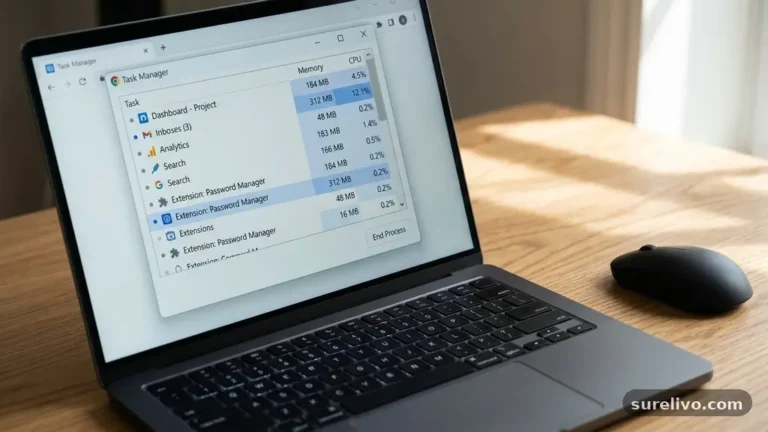
Pay attention to browser extensions. A browser extensions review should identify add-ons that are unused, duplicated, unsupported, or requesting broad access to every website you visit. Keep only extensions from developers you trust, and disable an extension before deleting it if you want to test whether a website or workflow depends on it.
Review email filters and automatic forwarding, particularly after travelling or using a shared computer. Attackers sometimes create hidden rules that move security alerts away from your inbox. Common mistake to avoid: treating antivirus software as the whole security strategy. Safe sign-in habits, timely updates, cautious links, account alerts, and regular permission reviews all matter.
8. Adjust privacy settings, inboxes, and device storage
Finish the routine with the settings and clutter that affect daily comfort. Review data privacy settings on major social networks, shopping accounts, browsers, and mobile operating systems. Reduce personalisation or data sharing where you don’t need it, check which apps retain activity history, and delete saved payment methods or addresses from services you no longer use.
Email inbox cleanup works best in batches. Search for newsletters you never read, unsubscribe from legitimate senders, and use filters or labels for receipts, travel confirmations, bills, and work alerts. Delete large attachments after saving any information you need, empty the spam and trash folders, and archive older messages instead of keeping every item in the inbox as a reminder.
Next, review device storage management. On a phone, examine large videos, offline downloads, podcasts, unused apps, and cached media.
On a computer, check temporary files, old installers, virtual machines, and local copies of cloud folders. Keep enough free space for updates and normal operation, but don’t remove system files simply because their names look unfamiliar.
End by recording one or two changes for next month, such as removing a service you no longer use or organising a growing project folder. Common mistake to avoid: accepting every “clean up” recommendation from an unfamiliar utility app. Some storage tools are unnecessary, and aggressive cleaners may remove data you meant to keep. Use built-in settings first and review deletions before confirming them.
How to make the routine easier to repeat
A maintenance plan becomes sustainable when it fits your real habits. Keep the checklist in the same place, use the same order each month, and group tasks by device or account so you don’t constantly switch contexts. You might handle phone storage and photo syncing on one day, then complete account security and computer updates during a quieter session.
Adjust the depth according to your circumstances. Someone who rarely downloads files may need only a few minutes of file review, while a freelancer handling client documents may need more careful archiving and backup verification. A family can share a calendar reminder but assign each person responsibility for their own accounts and devices.
| Task | Typical frequency | Useful completion check |
|---|---|---|
| Software and operating system updates | Monthly, or sooner for urgent security fixes | Devices show current update status and restart normally |
| Backup verification | Monthly | A recent backup exists and a sample file opens after restoration |
| Password manager audit | Monthly or quarterly | No important account uses a reused password or outdated recovery detail |
| File and inbox cleanup | Monthly | Temporary items are deleted, archived, or assigned a clear home |
| Privacy and permissions review | Every few months, with monthly spot checks | Unnecessary app access and old account connections are removed |
Use a “stop rule” as well. Once the important checks are complete, stop polishing folders and move on with your day. Common mistake to avoid: measuring success by how empty your inbox or desktop looks. The real measure is whether you can find important information, recover from a problem, and identify unusual account activity quickly.
Frequently asked questions
How long should a monthly digital maintenance session take?
Most people can complete a focused session in thirty to sixty minutes once the routine is established. The first session may take longer because you’ll be identifying accounts, organising files, and setting up backups. If your digital life is extensive, split the work into two shorter appointments rather than abandoning the routine.
Should I clean every device on the same day?
Not necessarily. Handling all devices together gives you a clear monthly reset, but it can feel overwhelming.
You can rotate tasks: review your phone and cloud photos one week, then update your computer and check account security the next. The important part is maintaining a predictable schedule so nothing is ignored indefinitely.
Is cloud storage enough for my backups?
Cloud storage may be part of a strong backup plan, but ordinary syncing isn’t always the same as a backup. Deleted or corrupted files can synchronise across devices, and an account problem may block access. Keep an additional copy of especially important material and periodically test that you can restore a file.
What should I do if I find an unfamiliar login?
Don’t click links in a suspicious alert message. Open the service through its official app or by typing the known address, review the activity, change the password, sign out other sessions, enable two-factor authentication, and check recovery details. If financial or identity information may be involved, contact the provider through its verified support process.
Can I automate parts of the routine?
Yes. Automatic updates, scheduled backups, calendar reminders, storage alerts, and email filters can handle repetitive work. Automation should support, not replace, review: check that backups are completing, alerts are reaching you, and automated rules aren’t deleting or hiding information you still need.
Keep the habit small, useful, and consistent
Building a Simple Monthly Digital Maintenance Routine is less about achieving spotless devices than creating dependable habits. Put the date on your calendar, protect your important accounts, verify backups, clear the clutter that slows you down, and leave uncertain items for a deliberate review instead of deleting them impulsively.
Start with the next thirty-minute session and improve the checklist as you learn what your devices and accounts actually need. After a few months, the routine will feel ordinary—and that quiet consistency is what keeps your digital life safer, clearer, and easier to recover.