How to Keep Browser Tabs From Consuming Too Much Memory
A sensible approach to keeping Browser Tabs From Consuming Too Much Memory starts with finding out which tabs and extensions are actually using your RAM. A browser can slow the whole computer when dozens of pages remain active, especially JavaScript-heavy websites, video services, web apps, and pages that keep refreshing in the background.
The good news is that you don’t need to close every tab or abandon your usual workflow. With a few measurements, better tab habits, built-in suspension tools, and occasional maintenance, you’ll keep important pages available while giving your computer more room to work.
Step 1: Measure Browser Tab Memory Usage Before Closing Anything
Start by identifying the real source of the slowdown. People often blame the number of open tabs, but tab count alone isn’t a reliable measure of memory use.
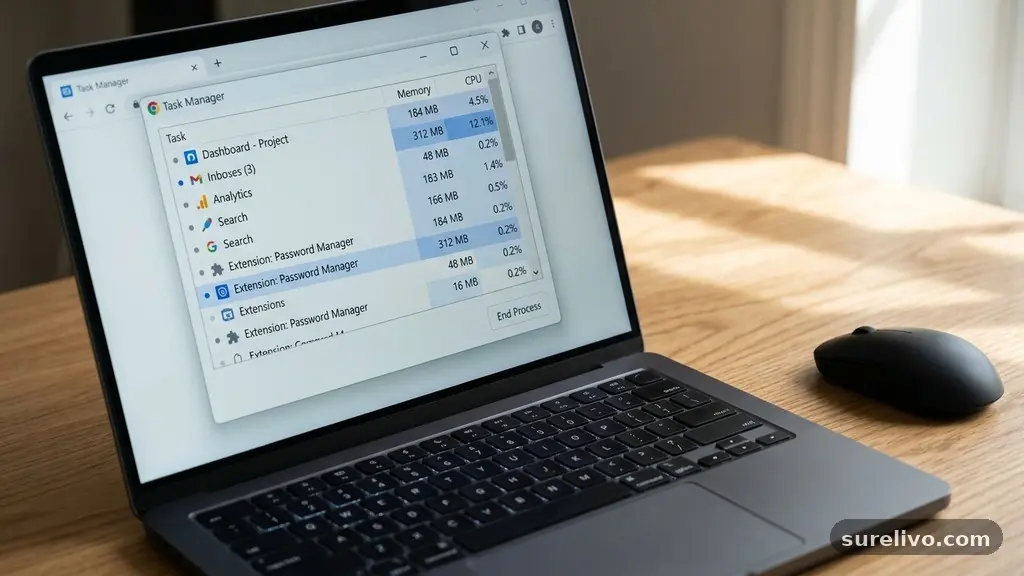
Ten simple text pages may consume less RAM than one online editor, video dashboard, social media feed, or browser-based design tool. A useful first step is to inspect browser tab memory usage while your normal work is open, rather than guessing from the tab strip.
Most major browsers provide a built-in process view. In Chrome, open the three-dot menu, choose More tools, and select Task Manager. You can also use the browser’s shortcut if you prefer.
Microsoft Edge offers a similar browser Task Manager. Firefox displays resource information through its internal performance tools, although the exact labels and layout can differ between versions.
Sort the list by memory or footprint, then look for unusually large entries. A single site using several hundred megabytes isn’t automatically broken; complex pages often need substantial resources. The warning signs are more specific: a page that keeps growing while idle, several copies of the same extension process, or a tab that remains heavy after you’ve stopped using it.
| What you see | What it may suggest | Useful response |
|---|---|---|
| One tab dominates memory | Heavy web app, video, or runaway script | Reload it, save your work, or close it temporarily |
| Many extension processes | Extensions are adding background activity | Disable unused add-ons and compare performance |
| Memory grows over time | Possible memory leak or page malfunction | Restart the tab, browser, or report the issue |
Common mistake to avoid: don’t assume the largest number must be the only problem. Browser processes share resources, and some entries represent subframes or services that support several tabs. Take a quick reading, close or suspend one suspected source, and check whether the computer responds better before making sweeping changes.
Step 2: Remove Extensions That Work Behind the Scenes
Browser extensions can be wonderfully useful, but each one adds code, permissions, and sometimes a background process. An extension that checks every page for coupons, translates text, blocks trackers, captures screenshots, or synchronizes notes may remain active even when its icon is not being used. Several modest add-ons can therefore create more browser activity than one demanding website.
Open your browser’s extensions or add-ons manager and review every item. Ask a practical question: have you used this extension in the past month, and would you notice if it disappeared? Remove anything abandoned, duplicated, or installed for a one-time task.
For extensions you occasionally need, disable them rather than leaving them active all day. Most browsers let you turn an add-on back on within seconds.
Pay attention to permissions and background behavior. An extension that can read and change data on every site has a larger potential impact than one that only works after you click it.
A password manager, accessibility tool, or security extension may be important, so don’t remove essential software simply because it appears in the process list. Instead, update it, check its settings, and confirm that it comes from a trustworthy developer.
Use a simple extension audit
- Keep tools that solve a regular, important problem.
- Disable extensions that duplicate browser features.
- Remove abandoned, unsupported, or unfamiliar add-ons.
- Test the browser after disabling several nonessential items.
- Re-enable extensions individually if a needed feature stops working.
Some browser extensions also open hidden tabs or maintain connections to online services. Those connections can consume memory and battery while the visible browser window appears quiet. Common mistake to avoid: don’t judge an extension only by whether its toolbar button is visible. Inspect its background activity and test the browser with it disabled; the difference may be more revealing than its stated feature list.
Step 3: Turn On Tab Suspension and Sleeping Features
Automatic tab suspension is one of the easiest ways to reduce idle memory use. When a tab has been inactive for a while, the browser can discard some of its working data or place it into a sleeping state.
The page remains represented in your tab strip, but its active browser process uses fewer resources. Selecting the tab later usually reloads or wakes it.
Chrome Memory Saver is designed for this purpose. Depending on your version, you can find it under performance settings and choose whether inactive tabs should be deactivated.
Microsoft Edge Sleeping Tabs works in a similar way, placing inactive pages to sleep after a period without interaction. Both browsers generally let you create exceptions for sites that must stay active, such as webmail, collaboration dashboards, music players, or pages with unsaved forms.
Firefox users may encounter tab unloading through built-in memory management or extensions that offer similar control. The exact behavior can vary with the operating system, browser release, and available RAM. A sleeping tab isn’t deleted from your session; it simply may need to refresh when selected, which is a reasonable trade-off for a smoother computer.
Choose exceptions carefully. If every tab is exempt, automatic suspension cannot do much. Keep an exception only when a page genuinely needs persistent activity, such as a live monitoring screen or a call that must remain connected.
Common mistake to avoid: don’t treat suspension as a replacement for saving work. A browser may reload a suspended page, and unsaved text or temporary state could disappear.
Save documents, drafts, and form entries before leaving a demanding tab for a long period. Suspension works best for reference pages, old searches, shopping pages, and articles you want to revisit—not for an unfinished transaction.
Step 4: Organise Tabs Into Purposeful Groups and Sessions
Tab organisation reduces memory use indirectly by making it easier to close what you no longer need. A crowded window encourages indefinite accumulation: research from last week sits beside today’s work, and background tabs quietly continue consuming resources. Grouping pages by purpose gives each collection a clear life span and makes decisions less tiring.
Create groups such as Work today, Travel planning, Reference, or Personal admin. Keep only the group you actively need expanded, and collapse or close groups when a project is finished. Colour coding can help you recognise context quickly, but the important part is the boundary: a group should represent a task or period, not become another permanent storage area.
For projects that return regularly, consider bookmarks or saved collections instead of leaving every page open. A bookmark folder called “Website redesign research” can hold documentation, examples, and tools without keeping all of them active.
Some browsers also support tab collections or vertical tab panels, which can make large sets easier to review. These features improve visibility, although they don’t necessarily reduce memory on their own unless the browser can discard inactive pages.
Session restore deserves special attention. It is convenient after a restart, but restoring 80 tabs at once can immediately recreate the original memory pressure.
Before closing the browser, remove tabs that you won’t need soon and save important pages to a folder. If your browser has an option to restore previous tabs automatically, decide whether that convenience is worth the startup load on a computer with limited RAM.
Common mistake to avoid: don’t confuse a tidy interface with lower resource use. A collapsed tab group may still contain active pages. Use grouping to decide what should be closed, bookmarked, or suspended, then confirm the effect in the browser Task Manager.
Step 5: Treat JavaScript-Heavy Websites as Temporary Workspaces
Some sites are effectively full applications. Online spreadsheets, project boards, streaming platforms, image editors, email clients, and social feeds may run continuous JavaScript, preload content, maintain live connections, and cache images or messages. Leaving several of these pages open can create substantial memory pressure even if you aren’t clicking anything.
Give demanding sites a clear working window. Open the spreadsheet when you’re using it, then close or suspend it when the task is complete.
If you need to preserve a page for later, bookmark it or copy its address into a project note. For media sites, pause playback and close duplicate player tabs; a hidden video page may still keep scripts, advertisements, and network activity alive.
Multiple copies of the same service deserve special scrutiny. Two email tabs, three project-management tabs, and a separate notification window may each load overlapping application data.
Combine them where practical. If one service offers a lightweight mobile or basic interface, it may be useful for quick checks, but don’t assume a simplified view is always lower-memory; measure the result rather than relying on labels.
Refreshing a page can temporarily reduce memory use when a site has accumulated stale data, but repeated refreshing is not a cure. It can increase network activity, interrupt unsaved work, and cause the page to rebuild its application state. If the site reliably grows heavier during a single session, report the issue to its developer or use a separate browser window for that service.
Common mistake to avoid: don’t leave live dashboards open merely because they might become useful later. A dashboard that updates every few seconds is doing work whether you look at it or not. Save the link, set a reminder, or open it only during the period when its updates matter.
Step 6: Adjust Browser Settings Without Sacrificing Useful Features
Browser settings can help, but changing them blindly may create new problems. Start with performance options that clearly address inactive pages, preloading, and background activity.
Some browsers preload pages that they predict you’ll visit, which can make navigation feel faster while using extra memory and network bandwidth. If your computer is under pressure, reduce or disable aggressive preloading and compare the experience.
Background app behavior is another setting to review. Depending on the browser, background apps may continue running after you close the main window.
This can support notifications and faster reopening, but it also keeps browser processes alive. If you don’t need browser-based notifications or background services, turning off that behavior may reduce idle consumption.
Hardware acceleration is more nuanced. It can move certain graphics tasks from the CPU to the GPU and improve video, animations, and web applications. On some systems, however, a graphics driver conflict causes crashes, flickering, high GPU memory use, or unusual tab behavior.
If a browser becomes unstable after opening video or interactive pages, test hardware acceleration by changing the setting and restarting the browser. Keep the option that produces better stability and responsiveness on your computer.
Don’t disable security features or content protections simply to make a memory number smaller. Blocking every script can break websites, and turning off isolation features may reduce safety. Performance settings should support normal browsing, not trade away protection for a small benchmark improvement.
Common mistake to avoid: don’t change five settings at once. Make one adjustment, restart the browser if requested, and use the same group of everyday tabs for comparison. That way, you’ll know which change helped and can reverse it if a favourite site stops working correctly.
Step 7: Restart Strategically and Watch for Memory Leaks
A browser restart is not a failure. It clears accumulated page data, ends stale browser processes, and gives extensions a clean start.
If memory usage has risen steadily over several days, close your work safely, confirm that important documents are saved, and restart the browser. On a computer that has also been running for a long time, restarting the operating system can clear wider resource pressure.
Pay attention to patterns before and after the restart. If one site becomes heavy after an hour, while the rest of the browser remains stable, that page may have a memory leak.
A memory leak occurs when software keeps reserving memory it no longer needs. Browser engines and websites are continually updated, so an issue may be fixed in a later release, but identifying the repeatable trigger gives you a useful workaround in the meantime.
Keep the browser updated through its normal update mechanism. Updates often include performance fixes, security patches, and improved tab management.
Also update graphics drivers when appropriate, especially if video pages or hardware acceleration appear connected to crashes. Avoid unofficial “speed booster” utilities that promise to clean browser RAM; they may terminate useful processes, discard sessions, or introduce unwanted software.
Build a small maintenance routine
- Once a week, review the extensions you actually used.
- Close finished projects instead of preserving them indefinitely.
- Check the browser Task Manager when the computer feels sluggish.
- Restart the browser after long, demanding work sessions.
- Update the browser and operating system through trusted channels.
Common mistake to avoid: don’t restart repeatedly without finding the cause. A restart gives temporary relief, but recurring symptoms point to a particular site, extension, setting, or browser version. Note what was open and how quickly memory rose; that simple record can make troubleshooting much faster.
Step 8: Match Your Tab Habits to the Computer’s Available RAM
There is no universal “safe” number of tabs. A computer with 16 GB of RAM may handle a different workload from a machine with 4 GB, and the operating system, video tools, games, and office applications all compete with the browser.
Your goal is not to reach a magical tab count. It is to leave enough memory for the rest of your work so the system doesn’t constantly swap data to storage.
Watch for practical symptoms: typing that appears seconds late, tabs reloading unexpectedly, a fan that runs continuously, long delays when switching windows, or the operating system warning that memory is low. Those signs matter more than a browser’s tab counter. If the computer becomes slow with only a handful of demanding pages, lowering browser workload may help more than closing dozens of lightweight articles.
Separate work by purpose when useful. A dedicated browser profile can keep work extensions and personal extensions from loading together, although running multiple profiles at once still consumes resources.
A second browser can also isolate a troublesome web application, but don’t assume installing another browser automatically solves the problem. Two browsers open simultaneously may use more memory than one well-managed browser.
Reduce duplicate activity across the whole computer. If a desktop email client, chat application, and browser tab all connect to the same service, choose the version that best fits your routine.
Likewise, close local programs that you aren’t using before opening a large web application. The browser is only one participant in the memory budget.
Common mistake to avoid: don’t chase the lowest possible RAM reading. Memory is there to be used, and caching can make applications feel faster. Aim for responsive performance, stable pages, and enough headroom for your normal tasks rather than treating every megabyte as a problem.
Frequently Asked Questions
How many browser tabs are too many?
There isn’t a fixed limit because tab memory usage varies dramatically. A few web applications may consume more resources than dozens of simple pages. Use responsiveness, system memory indicators, and the browser Task Manager as your guide, then suspend or close the pages that are genuinely active and unnecessary.
Does closing tabs really free RAM immediately?
Usually, closing a tab releases at least some of its resources, but the browser may retain shared processes, cached data, or extension activity. If memory remains high, inspect the browser Task Manager and close related tabs or restart the browser. Closing a tab with unsaved work can also cause data loss, so save first.
Should I use Chrome Memory Saver or Microsoft Edge Sleeping Tabs?
Either feature can help if you often leave pages inactive for long periods. Test the default behavior with your regular websites and add exceptions only for pages that must remain live. Remember that a sleeping tab may reload when you return, so save drafts and avoid relying on it for an active call, upload, or transaction.
Can browser extensions cause memory leaks?
Yes. An extension may retain page data, keep background connections open, or fail to release memory after repeated use.
Disable nonessential extensions, restart the browser, and compare memory behavior. If the problem disappears, re-enable extensions one at a time to identify the likely source.
Will more RAM solve browser slowdowns?
Additional RAM can help when the computer regularly runs out of available memory, but it won’t fix a leaking website, defective extension, or browser bug. Diagnose the workload first. Better tab suspension, fewer background services, and updated software may solve the problem without a hardware upgrade.
Keep the Browser Comfortable, Not Empty
Keeping Browser Tabs From Consuming Too Much Memory is mainly a matter of visibility and small, repeatable choices. Check which pages are heavy, trim unnecessary browser extensions, let inactive tabs sleep, save finished work as bookmarks, and restart when a long session begins to degrade. The aim isn’t to maintain an empty tab bar; it’s to keep enough RAM available for the work you care about.
Try one change today, such as auditing extensions or enabling tab suspension, then watch how your normal browsing feels. If a particular site or process keeps causing trouble, document the pattern and investigate it rather than repeatedly forcing the browser to recover.