How to Reduce Background App Activity Without Breaking Essential Features
Reducing Background App Activity Without Breaking Essential Features starts with a simple distinction: some apps need to work quietly in the background, while others are only consuming battery, data, and attention. A blanket shutdown can stop useful alerts, delay messages, or break automatic synchronization, but a thoughtful cleanup can make a phone feel faster and last longer.
The practical approach is to identify which apps truly need background access, limit everything else, and check the result after each change. You’ll learn how to adjust background app refresh, battery controls, permissions, notifications, and data settings without sacrificing navigation, communication, security, or other features you rely on every day.
1. Identify Which Apps Actually Need Background Access
Start by making a short list of apps that must perform tasks while you aren’t actively looking at them. Messaging apps, email clients, calendar tools, two-factor authentication apps, ride-hailing services, health trackers, smart-home controls, and some security applications may need limited background activity. A delivery app may need location access during an active order, while a photo editor usually doesn’t need to run at all after you close it.
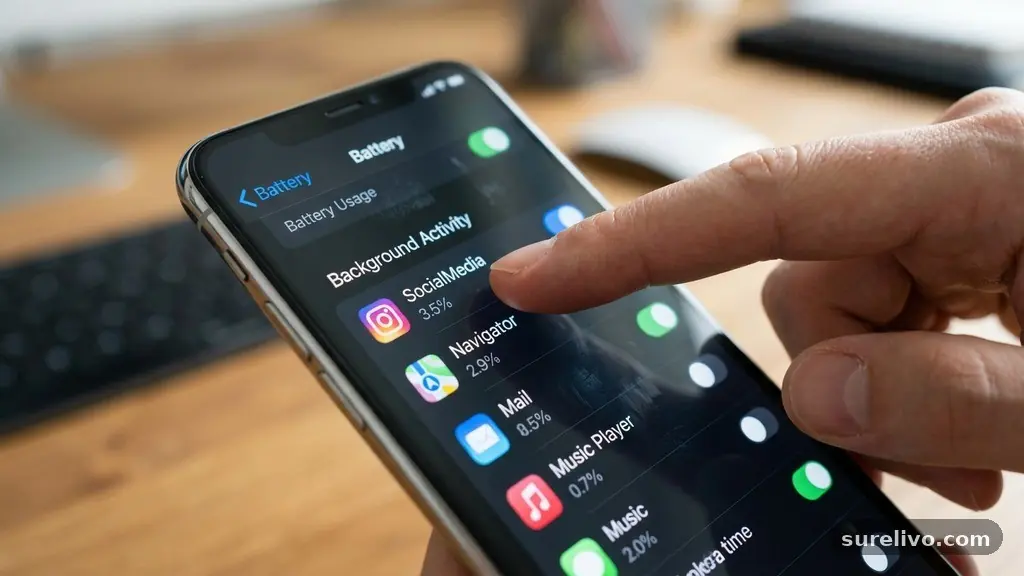
Next, review your phone’s battery usage settings. On Android, the wording varies by manufacturer, but you’ll usually find a list under Battery, Battery usage, or App battery management. On an iPhone, open Settings, then Battery, and inspect which apps have consumed the most power over the past day or several days.
High usage doesn’t automatically mean an app is badly behaved: a video app used for two hours will naturally appear near the top. Pay closer attention to apps with significant background activity despite little direct use.
Build three groups:
- Always allowed: apps that must deliver timely alerts or perform safety-critical tasks.
- Limited: apps that can refresh occasionally or work only under certain conditions.
- Blocked: games, shopping apps, retail browsers, unused social networks, and tools that offer no useful background function.
Keep the first group small. If every app is treated as essential, the setting loses its value. A useful test is to ask, “Would I miss something important if this app waited until I opened it?” If the answer is no, background access is probably unnecessary.
Common mistake to avoid: judging an app only by its name. A banking app may need push notifications for fraud alerts but not constant location access.
A travel app may need background location during a trip but not every day. Consider the feature you use, not the category the app belongs to.
2. Adjust Background Refresh Rather Than Disabling Everything
Background refresh lets an app check for new content before you open it. This is convenient, but frequent checks can use energy and mobile data, particularly when many apps refresh at once. The safest strategy is selective control: preserve background access for apps whose information needs to be current, then turn it off for apps that can wait.
On iOS, the relevant control is iOS Background App Refresh. Open Settings, choose General, and select Background App Refresh. You can disable the function entirely, allow it only over Wi-Fi, or switch it off for individual apps.
Wi-Fi-only access is a sensible middle option if your main concern is mobile data usage. Turning off refresh does not normally prevent an app from sending properly configured push notifications, though the exact behaviour depends on the app and the type of alert.
Android phones use different labels, including background usage, unrestricted battery use, or allow background activity. Open an app’s information page from Settings, then look for Battery.
The available choices may include Unrestricted, Optimized, or Restricted. “Optimized” is usually the safest default because the operating system decides when the app can work in the background. Reserve “Unrestricted” for apps that genuinely fail without it.
Refresh controls affect different tasks in different ways. A weather app may show slightly older information until opened, while a chat app may still receive notifications through a separate push service. A podcast app may not download a new episode automatically, but playback and manual downloads will continue to work.
Change only a few apps at a time. Wait a day, then check whether notifications arrived, scheduled content appeared, and battery life improved. This makes troubleshooting much easier than switching off background access for thirty apps and trying to guess which change caused a problem.
Common mistake to avoid: assuming that turning off background refresh is the same as disabling all background behaviour. Push notifications, location services, cloud synchronization, and media playback may use separate controls. Check the individual feature before deciding that an app is malfunctioning.
3. Use Battery Optimization and Adaptive Controls Wisely
Modern phones already include systems that reduce unnecessary activity. Android battery optimization places apps into managed states, while adaptive battery learns which apps you use frequently and gives them more access than rarely opened ones.
Android may also use app standby to restrict apps that haven’t been opened for a while. These controls are often more balanced than manual restrictions because they respond to usage patterns.
Open Settings and search for “battery optimization” if the menu isn’t obvious. On some phones, you’ll find it under Apps, Special app access, or Battery. Leave most apps optimized.
If an important app stops delivering alerts, look for its battery setting and move it from Restricted or Optimized to a less aggressive option. Do this selectively, then observe the result rather than disabling optimization across the entire device.
Some manufacturers add their own power-management layers. They might freeze background processes, remove startup permissions, or close apps after a period of inactivity.
These features can be useful, but aggressive settings may interfere with alarm apps, wearable connections, VPNs, password managers, and messaging tools. If an app works only after you open it, its battery policy is one of the first places to investigate.
Android’s official advice on improving battery life on Android devices explains several system-level options and helps clarify why settings can differ between phones. Manufacturers often rename the same function, so reading the help information for your specific model can prevent a well-intended change from becoming too restrictive.
On iPhone, Low Power Mode temporarily reduces or changes several background tasks, including some automatic downloads and fetching behaviour. It’s useful during a long day or an emergency, but it isn’t always the right permanent setting if you need frequent synchronization. Use it as a situational tool, then return to normal operation when reliable background updates matter.
Common mistake to avoid: removing an app from the recent-apps screen repeatedly. On many phones, that does not provide meaningful savings and may force the app to restart from scratch later, using extra processor power. Let the operating system manage ordinary apps unless one is clearly misbehaving.
4. Tighten App Permissions, Especially Location Access
Background activity isn’t limited to refresh requests. An app may continue using location, Bluetooth, sensors, contacts, or nearby-device access even when its main screen is closed. Reviewing app permissions can therefore reduce both battery drain and privacy exposure without blocking the app’s central function.
Open Settings, then Privacy or Permission Manager, and review permissions by category. Location deserves special attention. A navigation app may need “Always” or background location during active route guidance, while a recipe app usually needs no location at all.
A weather app may work perfectly with location available only while the app is in use. On iPhone, choices such as “Never,” “Ask Next Time,” “While Using the App,” and “Always” make that distinction clear. Android offers similar options, although the labels vary.
Use the least access that supports the feature you want. If a fitness app records a walk while the screen is locked, background location is part of its purpose.
If a shopping app uses location only to suggest nearby stores, “While Using” may be enough. Disable precise location when approximate location will do, particularly for apps that only need a general region.
Check microphone, camera, Bluetooth, and motion permissions too. A video meeting app may need microphone and camera only during calls.
A smart-lock app may need Bluetooth in the background, but a photo collage tool almost certainly doesn’t. Removing unused permissions can also stop repeated checks that wake the phone.
After making changes, use the app normally. Start a workout, receive a message, connect a wearable, or request directions, depending on the feature you are protecting. If something fails, restore only the permission required for that task rather than returning every setting to its broadest option.
Common mistake to avoid: denying location permission to a navigation or emergency-related app without testing its core purpose. Privacy matters, but a restriction that prevents turn-by-turn directions or safety alerts at the wrong moment is not a successful optimization.
5. Control Notifications and Automatic Synchronization
Notifications are a visible result of background activity, but they aren’t all equally important. Every alert can wake the screen, trigger sound or vibration, and cause an app to retrieve fresh content. Reducing unnecessary notifications can improve battery life while making the alerts you keep easier to notice.
Begin with notification categories rather than switching off an entire app. A banking app’s fraud alerts should remain enabled, but promotional offers can usually be muted.
A social network might provide useful direct-message alerts while its recommendations, live videos, and “someone you may know” prompts can disappear. Email apps often let you receive messages from priority contacts immediately while batching newsletters for later.
Android notification channels offer especially fine-grained control. On iPhone, scheduled summaries, Focus modes, and per-app notification settings can reduce interruptions without blocking urgent communication. Make sure calls, calendar reminders, authentication codes, and direct messages remain available if you depend on them.
Automatic synchronization deserves a separate review. Cloud storage, notes, contacts, calendars, and email may sync in the background so that changes appear across devices. Keep synchronization active for information where delays could cause confusion, such as work calendars or shared documents.
For rarely used accounts, manual refresh may be reasonable. You might also remove old accounts from the phone entirely rather than leaving their apps checking for updates.
Some apps combine notification and sync settings in their own menus. An email client may offer push, periodic fetch, or manual retrieval.
Push usually provides faster delivery, while fetch checks on a schedule and may use less continuous background activity. The best choice depends on how quickly you need new mail and how many accounts are connected.
Common mistake to avoid: silencing every notification and then blaming battery settings when an important message is missed. The better approach is to keep high-value alerts, remove marketing noise, and use summaries or Focus modes for everything else.
6. Reduce Mobile Data Use Without Breaking Offline Features
Background work becomes more expensive when it happens over a cellular connection. Social feeds, cloud backups, app updates, photo uploads, and video previews can quietly consume a data allowance while also waking the processor. A targeted reduction in mobile data usage often brings a noticeable improvement without affecting essential communication.
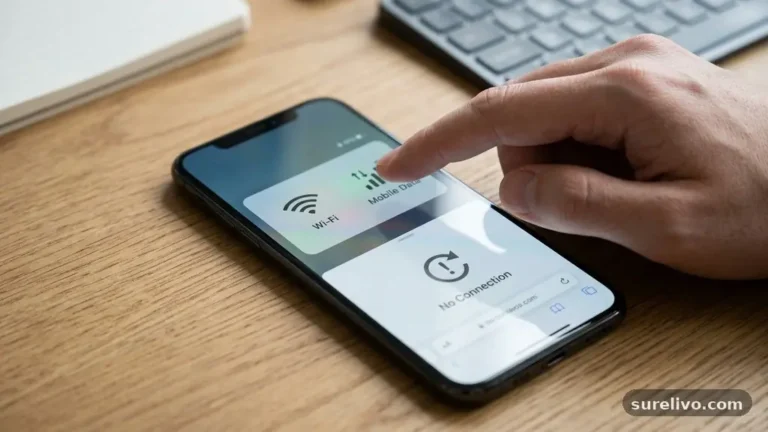
On Android, open Network and Internet or Connections, then inspect Data usage. On iPhone, go to Cellular or Mobile Data and review the per-app list.
Disable cellular access for apps that can wait for Wi-Fi, such as video streaming, large cloud drives, app stores, and automatic photo backups. They will generally continue to work over Wi-Fi or when you manually re-enable cellular access.
Enable data saver mode on Android when you want a broader system-level limit. The feature may restrict background data for many apps while allowing you to create exceptions. Add messaging, email, ride services, and other time-sensitive tools to the unrestricted list if necessary. iPhone users can use Low Data Mode for a similar purpose, with separate settings for cellular and Wi-Fi networks.
Look inside individual apps for options such as “Wi-Fi only,” reduced media quality, automatic download controls, and background upload preferences. A podcast app can download subscriptions only on Wi-Fi.
A photo service can delay full-resolution uploads. A maps app can save an offline area before a trip, reducing the need for continuous data access while driving.
Do not confuse a data restriction with a battery restriction. An app that cannot use cellular data may still use Wi-Fi in the background, and an app restricted by battery controls may still consume data while open. Apply both controls only where they solve a real problem.
Common mistake to avoid: blocking mobile data for authentication, travel, or communication apps without preparing an alternative. Offline maps help with navigation, but they do not replace a live ride update or an emergency message. Test the exact situation in which you expect the app to work.
7. Manage Startup Apps and Background Activity After Updates
Some Android phones allow apps to launch automatically after a restart or to remain active as startup apps. This can be useful for messaging, accessibility services, device security, and wearable connections. It can also leave shopping tools, games, and promotional utilities running before you have opened them once.
Search Settings for “startup,” “auto-launch,” or “background activity.” The menu may be located under Battery, Apps, or a manufacturer-specific device-management tool. Keep automatic launch enabled for apps that must listen for events immediately after boot. Disable it for apps you use occasionally, especially those that do not provide time-sensitive alerts.
Review this area after major operating-system or app updates. An update may reset permissions, add a new background service, or change how a manufacturer classifies the app.
You might notice a new battery drain after installing an update even though your habits have not changed. Check battery usage first, then inspect the affected app’s permissions, refresh access, and battery policy.
Widgets, live wallpapers, wearable companions, VPNs, and accessibility tools can also contribute to background activity. That doesn’t make them wasteful.
A VPN may be essential for work, and an accessibility service may be essential for using the phone. The goal is to identify what each service does and decide whether its value justifies continuous operation.
After every change, restart the phone if the setting affects startup behaviour. Then give it enough time to reveal a pattern.
One hour of battery data can be misleading because navigation, gaming, weak signal, and a software update can temporarily raise consumption. A full day of ordinary use gives you a better comparison.
Common mistake to avoid: installing third-party “phone booster” or automatic task-killer apps to manage processes. These tools may add their own background service, show intrusive ads, and close apps that the operating system would have managed more efficiently. Built-in controls are usually safer and easier to reverse.
8. Test Essential Features and Create a Personal Balance
Once you have made several changes, run a deliberate feature check. Send yourself a message, receive a calendar reminder, trigger a two-factor authentication code, connect a wearable, start navigation, upload a photo, and check whether an alarm or automation still behaves as expected. You don’t need to test every app; focus on the functions that would cause real inconvenience or risk if delayed.
Keep a small note of what you changed and when. For example, write down that a social app was placed under restricted background activity, a shopping app lost location access, and cloud photo uploads became Wi-Fi-only. If a problem appears later, you can reverse one setting instead of resetting the whole phone.
Use a simple decision table as you refine the settings:
| App or feature | Recommended starting point | Restore access if |
|---|---|---|
| Messaging and authentication | Allow notifications and optimized background use | Alerts arrive late or not at all |
| Navigation and active fitness tracking | Allow location while in use, or in the background when required | Routes, tracking, or safety features stop |
| Shopping and entertainment | Restrict background activity and cellular data | A specific download or purchase alert is time-sensitive |
| Cloud backup | Wi-Fi-only uploads and scheduled syncing | Important files are not backing up reliably |
There is no perfect setting that applies to every person. Someone who depends on live glucose monitoring, a connected lock, or work email needs more background access than someone who mainly reads articles and takes photos. Battery health, network strength, travel habits, and notification expectations all matter.
Common mistake to avoid: chasing the smallest possible battery graph. A phone that lasts an extra hour but misses a work call, delays a security alert, or loses a workout record is not serving you well. Aim for dependable performance with less waste, not absolute silence from every background process.
Frequently Asked Questions
Will turning off background app activity stop notifications?
It can, depending on the app and the restriction used. Push notifications often operate separately from background app refresh, but aggressive battery or data restrictions may delay them. Keep notifications enabled for essential apps, use optimized rather than restricted battery settings where needed, and test messages after making changes.
What should remain unrestricted in battery settings?
Only apps that genuinely need immediate or continuous background access should be unrestricted. Messaging, authentication, navigation during active trips, medical monitoring, accessibility services, and some wearable apps may qualify. Start with optimized settings and restore broader access only if a specific feature fails.
Does Low Power Mode damage apps or battery health?
Low Power Mode is designed to reduce activity temporarily; it does not normally damage apps or the battery. It may delay fetching, reduce automatic downloads, and alter visual or background behaviour. If you need instant synchronization all day, use it selectively rather than treating it as a permanent requirement.
Why does an app still use battery after background refresh is disabled?
Background refresh is only one source of activity. Location services, push notifications, media playback, cloud sync, widgets, Bluetooth connections, and an app left open on screen can still consume power. Check the app’s permissions and battery details to identify the actual source before applying more restrictions.
How long should I wait before judging a battery change?
Try to compare a full day of similar use, and ideally look at several days rather than one unusual afternoon. Weak signal, navigation, gaming, camera use, and system updates can distort short-term results. Make one or two changes at a time so you can tell which adjustment helped.
Keep the Phone Helpful, Not Constantly Busy
Reducing Background App Activity Without Breaking Essential Features is mainly an exercise in choosing priorities. Keep timely alerts, active location tools, security functions, and important synchronization available; restrict promotional, rarely used, and data-heavy apps. Battery optimization, permission reviews, selective refresh, and data controls work best as small adjustments rather than a single drastic shutdown.
Start with the battery-usage list, change a few settings, and test the features you depend on. Revisit the choices after major updates or changes in routine, and let your phone’s actual behaviour guide the next step. A balanced setup should feel quieter and more efficient without making you think twice before trusting it.