What to Do When a Program Opens but Its Main Window Is Missing
When a program opens but its main window is missing, the app may not be broken at all. Its window could be off-screen, minimized into the taskbar, trapped on a disconnected monitor, or hidden behind another desktop.
Knowing what to do when a program opens but its main window is missing can save you from reinstalling software unnecessarily. A few keyboard commands and display checks usually reveal where the window went, while a small number of deeper fixes can handle damaged settings, graphics glitches, or an application that is running without drawing correctly.
1. Confirm that the program is actually running
Start by checking whether the application launched or merely appeared to start before stopping. On Windows, look at the taskbar for the program’s icon.
If the icon has an underline or highlighted background, Windows usually considers the app open, even if its visible window is elsewhere. Clicking the icon once may bring the window forward, while clicking it repeatedly can switch between multiple windows belonging to the same program.
You can also press Alt+Tab to open the task switcher. Keep holding Alt and tap Tab until the missing program is selected, then release both keys.
If a preview appears, the program has a window that Windows recognizes. If the application is listed but no usable preview is shown, it may be minimized, positioned beyond the visible desktop, or experiencing a rendering problem.
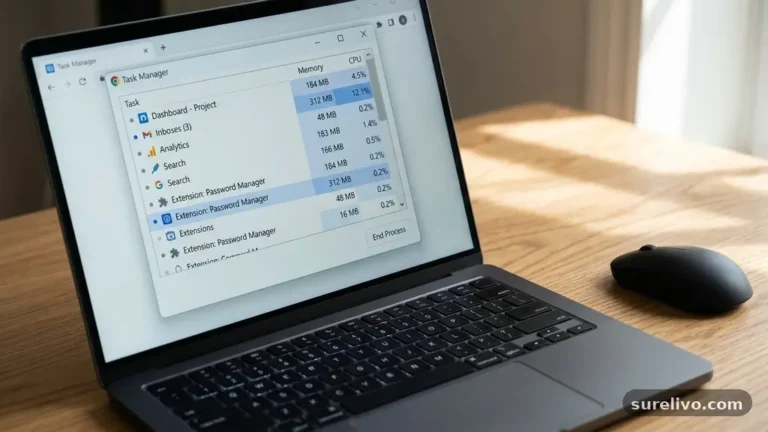
Task Manager provides a second confirmation. Press Ctrl+Shift+Esc, find the program under the Processes or Apps list, and check whether it is marked as running. A process using a noticeable amount of CPU may still be loading a file or completing startup, so give it a moment before forcing it closed.
Common mistake: don’t immediately click “End task” just because the window isn’t visible. Closing an active program can discard unsaved work, cancel a conversion, interrupt an update, or leave a file in an incomplete state. First use Alt+Tab, the taskbar, and the recovery methods below.
2. Bring a hidden window back with keyboard commands
The quickest fix for an off-screen window is often a keyboard command that tells Windows to move or resize the selected application. Select the program with Alt+Tab, then press Alt+Space.
This opens the window’s system menu, even when the window itself is outside the visible area. Choose Move from that menu, or press the corresponding letter shown by your Windows version, and then tap an arrow key.
After you press an arrow key, move your mouse slowly. The hidden window should attach to the pointer, allowing you to drag it back onto the screen.
Click once when the window is visible. If the pointer seems to do nothing, press an arrow key several times before moving the mouse; older applications sometimes need that nudge before Windows begins the Move command.
Another useful option is maximize window. With the application selected, press Alt+Space and choose Maximize.
You can also right-click the program’s taskbar button and select Maximize if that menu is available. Maximizing forces the window to occupy the current display area, which often recovers an application that was saved at an unusable position.
Windows also includes a direct monitor-switching shortcut: Win+Shift+Arrow. Select the program first, then press Win+Shift+Left Arrow or Win+Shift+Right Arrow to send its window to another monitor. This is especially helpful after unplugging a laptop from a dock or disconnecting a second display.
Common mistake: avoid dragging randomly while the window is still selected in the background. If the wrong application has focus, you may move or maximize another window instead. Confirm the program name in Alt+Tab or Task Manager before using the Move command.
3. Check the taskbar, hidden icons, and minimized states
A window can look missing when it is simply minimized. Look along the taskbar for the application’s icon, then click it once.
If the icon represents several windows, Windows may show small previews above it; choose the preview that belongs to the document or workspace you need. Right-clicking the icon may also offer commands such as Restore, Maximize, Move, and Close.
Some programs don’t remain as ordinary taskbar windows. Chat tools, backup utilities, password managers, audio controls, and download clients may minimize to the notification area near the clock. Click the small upward arrow on the taskbar to reveal hidden icons.
Right-click the relevant icon and look for Open, Show, Restore, or Preferences. The application may be operating normally in the background rather than waiting for a full window.
Window grouping can make this confusing. If the taskbar is set to combine buttons, several instances may be represented by one icon.
Hover over it and inspect each thumbnail. A program with separate settings, editor, and dialog windows might have opened the main panel behind a modal dialog, meaning the app will not respond until you answer a prompt that is hidden elsewhere.
Try pressing Esc after bringing the program into focus, then use Alt+Tab to cycle through any dialog boxes associated with it. A security warning, file-selection prompt, licensing notice, or “recover previous session” message can block the main window without making the cause obvious.
Common mistake: don’t assume that a taskbar icon always represents a visible main window. Some applications deliberately run in the notification area, and closing them from there may stop a service you still need. Use the icon’s menu to distinguish between hiding, restoring, and exiting.
4. Repair problems caused by multiple monitors
Multiple monitors are a frequent reason an application appears to open without a window. Windows stores the last position and size of many programs. If the program was last used on a monitor that has been disconnected, or if a docking station changed the display arrangement, its window may still be sitting in the old location.
Press Win+P and choose PC screen only. This temporarily tells Windows to use the primary display, which can bring back windows assigned to a missing monitor.
If the application appears, close it while it is visible, reconnect the other display if needed, and reopen it. Closing a program in a visible position often causes it to remember that position next time.
Open Settings, select System, and choose Display. Use Identify to see which screen Windows considers display 1 and display 2, then drag the monitor rectangles so their arrangement matches your physical desk. A display placed above, below, or far to the side can make a window seem absent because the pointer and window are traveling in a direction you don’t expect.
Check whether a monitor is detected but disabled. A cable that is loose, a dock that has gone to sleep, or an input set to the wrong source can change the desktop without obviously notifying you. After reconnecting a screen, select Detect in display settings if Windows does not find it automatically.
If you regularly switch between a laptop screen and an external monitor, consider closing programs before disconnecting the dock. For stubborn applications, use Alt+Tab followed by Win+Shift+Arrow to move the window back before unplugging.
Common mistake: don’t rearrange monitor rectangles repeatedly without checking the actual screen labels. The problem may be a disconnected display rather than an incorrect layout, and changing the arrangement can make the saved window position even harder to recover.
5. Reset display scaling and screen resolution carefully
Changes to screen resolution or display scaling can alter how an application calculates its window boundaries. A program designed for a standard desktop may save a position that becomes invalid after switching to a high-resolution laptop panel, changing text size, or connecting a television as a second monitor. The window may technically be present but occupy only a few pixels, extend beyond the desktop, or render outside the visible work area.
Open Settings, go to System, and select Display. Check the resolution marked Recommended, then review the Scale setting.
If either value changed recently, temporarily return to the recommended option and reopen the application. You don’t need to keep a less comfortable setting permanently; this is a diagnostic step that can reveal whether display geometry caused the problem.
Some older programs behave poorly with high-DPI scaling. Right-click the program’s shortcut or executable, choose Properties, and open the Compatibility tab.
The high-DPI settings may allow Windows to override the application’s scaling behavior. Try one change at a time, launch the program, and record which setting helped so you can reverse it if another application is affected.
When the window returns, resize it manually and close the program normally. Many applications save the new dimensions.
If it opens correctly afterward, restore your preferred resolution and scaling, then test it again. A program that disappears only at one scaling percentage may need a permanent compatibility adjustment or a software update.
Common mistake: don’t lower the resolution dramatically as a first response. That can rearrange every open window and make text blurry without addressing the underlying issue. Use the recommended display settings and change only one variable at a time.
6. Look for virtual desktops and platform-specific window tools
Windows virtual desktops can make an application seem closed when it is running on another workspace. Press Win+Tab to open Task View and inspect the desktops shown at the top.
Select each desktop and check the taskbar or use Alt+Tab. The program may be open on Desktop 2 even though you are currently viewing Desktop 1.
To move an application between virtual desktops, open Win+Tab, locate the program’s thumbnail, right-click it, and choose Move to or move it to a selected desktop. You can also use Task View to create a temporary desktop for testing. If the application appears there, the software is functioning; the confusion is related to workspace placement rather than startup failure.
macOS users have a similar issue with Spaces. Open macOS Mission Control by pressing its keyboard shortcut, swiping upward with three or four fingers on the trackpad, or using the Mission Control key.
Look across the spaces at the top of the screen for the application. Selecting its window should bring it forward, and you can drag the window to another space if necessary.
On either platform, full-screen applications can create a separate workspace that feels disconnected from the normal desktop. A browser, video editor, or presentation tool may be full-screen on another space while its supporting dialog remains on the original desktop. Mission Control and Task View expose those arrangements more clearly than ordinary task switching.
Common mistake: don’t open several extra copies of the program while searching across desktops. You may create conflicting sessions, duplicate unsaved documents, or make it difficult to identify the original window. Check every workspace first.
7. Restart the application and refresh its saved window position
If keyboard movement and display checks fail, close the program in a controlled way and launch it again. Save any work you can reach, then use the application’s own Exit or Quit command. If there is no visible window, select the process in Task Manager only after confirming that no important operation is still running.
After closing it, wait several seconds before reopening. Some applications leave a background process behind, and starting a second instance too quickly may cause the new window to attach to the old session. If Task Manager still lists the program, select it and choose End task only when you’re confident that the program has stopped responding and there is no recoverable work.
Many applications have startup options that reset their user interface. The exact key varies by program, but holding a modifier such as Shift, Ctrl, or Alt while launching may open a safe mode or reset prompt. Check the software’s built-in help or official documentation for the correct command rather than guessing, because one shortcut might open a recovery mode while another could create a new profile.
You can also reset a window layout from within the program if you can access its menus through keyboard shortcuts. Look under View, Window, Workspace, Layout, or Preferences for options such as Reset Window Position, Restore Default Layout, or Reset Workspace. This is safer than deleting configuration files because it changes the interface without removing recent files, templates, or account data.
Common mistake: don’t delete the program’s entire settings folder as a first-line fix. Configuration files may contain custom workspaces, plug-ins, saved connections, or license information. Back them up first, and use a documented reset procedure whenever possible.
8. Check graphics drivers and repair the program only after simpler fixes
A window that opens as a blank frame, flashes and disappears, or exists in Task Manager without rendering may involve the graphics driver. Display drivers control how applications draw their windows, and a recent update or hardware change can expose compatibility problems. Restart the computer first, since a clean reboot can clear a temporary graphics state that survives closing the program.
If the issue began after a driver update, check Windows Update or the computer manufacturer’s support utility for a stable driver. For creative software, games, and video applications, the program may offer a setting to disable hardware acceleration. If you can reach its preferences through a keyboard menu or safe mode, temporarily turn that option off and test again.
Repair or reset options may be available under Windows Settings, Apps, Installed apps, and the program’s advanced options. Repair usually preserves personal data while replacing damaged components; Reset is more disruptive and may remove local settings or sign you out. Read the description before selecting either option.
Reinstallation should be the final software step, not the opening move. Before uninstalling, record activation details, export custom settings, back up important documents, and check whether the problem affects only one user account. If the program opens normally in a new account, its original profile may be damaged and a full reinstall might not be necessary.
If several unrelated programs show missing or blank windows, suspect a broader display or operating-system issue rather than one application. Test after a restart, disconnect unnecessary displays, and note whether the problem appears only after sleep or docking. That pattern gives technical support useful evidence.
Common mistake: don’t download a graphics driver from an unfamiliar driver-collection site. Use Windows Update, the computer manufacturer, or the graphics hardware maker, and create a restore point when appropriate before making major changes.
FAQ
Why does a program appear in Task Manager but not on the screen?
The application may be minimized, positioned on a disconnected monitor, open on another virtual desktop, or blocked by a hidden dialog. Select it with Alt+Tab, try Alt+Space followed by Move, and use Win+Shift+Arrow if another display was recently removed.
What should I do if the program’s taskbar icon does nothing?
Right-click the icon and try Restore or Maximize. If those commands are unavailable, use Alt+Tab to select the program and press Alt+Space. You can also use Task Manager to check whether the process is responding before deciding whether to close it.
Can changing screen resolution recover an off-screen window?
It can, particularly when a saved window position no longer matches the current monitor layout. First try the recommended resolution and scaling in Display settings, then reopen the application. Resolution changes can affect every open window, so use them as a controlled troubleshooting step.
Why does the issue happen after unplugging a monitor?
Windows may remember that the program belonged on the disconnected screen. The application is still running, but its saved coordinates place it outside the laptop or primary monitor’s visible area. Win+P, Win+Shift+Arrow, and the Alt+Space Move command are usually the fastest remedies.
Should I reinstall the program if its main window is missing?
Usually not at first. Confirm that it is running, recover the window, check display settings and virtual desktops, and restart it cleanly. Repair or reinstall only after those steps fail, and back up settings and important files before using a reset or uninstall option.
Conclusion
When you’re deciding what to Do When a Program Opens but Its Main Window Is Missing, begin with the least disruptive checks: Alt+Tab, the taskbar, Task Manager, and the Move command. Then inspect disconnected monitors, display settings, virtual desktops, and scaling before changing drivers or reinstalling anything.
Most missing windows are misplaced rather than destroyed. Once you recover the program, close it while visible so it can save a sensible position, and note what triggered the problem. If the same behavior returns, that pattern will point toward a display configuration, graphics driver, or application-profile fix.