How to Recognize Software Updates That Require Extra Caution
Recognizing software updates that require extra caution starts with looking beyond the familiar “Update now” button. Most updates are routine, but some alter permissions, install new firmware, affect sensitive data, or come from sources you haven’t verified. A little checking can prevent a broken workflow, lost files, privacy surprises, or malware disguised as a helpful patch.
By recognizing Software Updates That Require Extra Caution, you’ll know how to inspect the source, read release notes, assess compatibility, protect your data, and decide whether to install immediately or wait. The goal isn’t to fear updates; it’s to install them with enough context that useful security improvements don’t create avoidable problems.
1. Identify Where the Update Came From
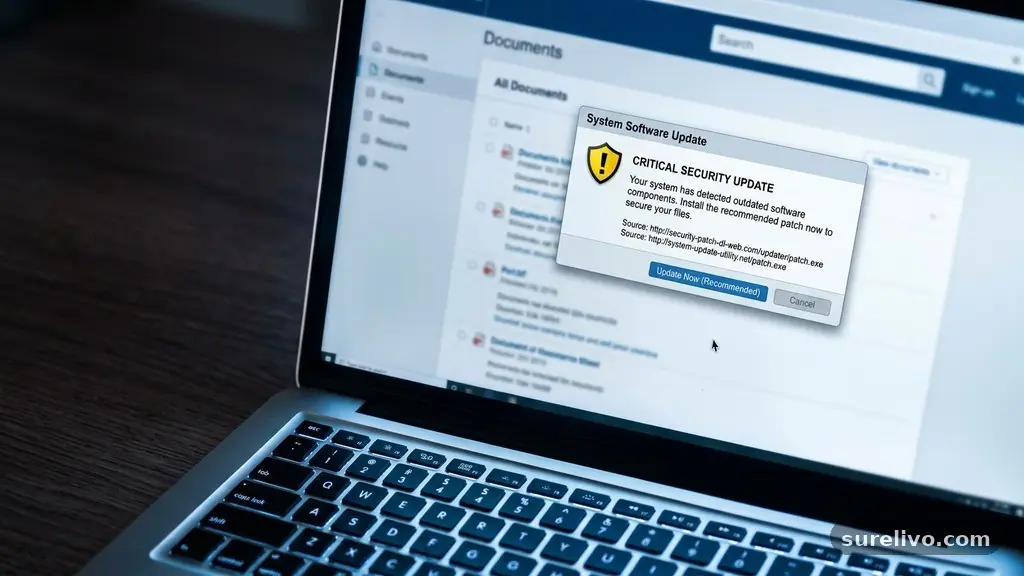
The first step is to verify the update’s source before judging its contents. An alert inside a trusted operating system, an app’s official update screen, or a device manufacturer’s support portal is generally more credible than a pop-up appearing on an unfamiliar webpage. The wording, logo, and design may look convincing, but appearances don’t establish software authenticity.
Check the publisher’s name, the website address, and the application that generated the message. If an email tells you to download a “critical security update,” don’t use its attachment or embedded button automatically.
Open the relevant app yourself, visit the vendor’s official site by typing the address, or use the device’s built-in update settings. This simple detour avoids many phishing attempts that imitate Microsoft, Apple, Google, banks, browser companies, and security vendors.
Be particularly careful with third-party software obtained from download sites, unofficial app stores, forums, or file-sharing services. A legitimate developer may distribute software through more than one channel, but the safest option is usually the publisher’s own distribution system. On a company-managed computer, the correct source may be an internal portal rather than a public download page.
Common mistake to avoid: assuming that a message is safe because it uses urgent language or mentions a real product. Urgency is often designed to stop you from checking. A genuine software update should still be available through a trusted path, and you should be able to confirm who published it and why it is being offered.
2. Read the Release Notes Before Clicking Install
Release notes provide the context that an update prompt often leaves out. They may explain whether the package contains a security patch, a feature change, a bug fix, a database migration, or a major redesign. Look for the version number, publication date, supported devices, known issues, and any instructions that must be followed before installation.
A changelog can also reveal the update’s scale. A small browser patch that fixes a handful of defects presents a different level of preparation than an operating system update that changes drivers, file permissions, encryption behavior, and system settings.
Neither should be judged by download size alone. Some important security fixes are small, while a large package may contain mostly language files or visual changes.
Pay attention to phrases such as “breaking change,” “requires restart,” “data conversion,” “unsupported configurations,” or “administrator approval.” These signals don’t mean you should reject the update. They mean you should choose an appropriate time, confirm that your software and hardware can support it, and make sure you know what recovery options exist.
If the notes mention a CVE vulnerability, find out whether the issue affects your version and whether the update fixes it. A CVE reference can help distinguish a genuine security release from vague marketing language. For broader context, the CISA Known Exploited Vulnerabilities Catalog identifies certain flaws that attackers are known to exploit.
Common mistake to avoid: reading only the headline. “Improved security” is useful but incomplete. The body of the release notes may disclose compatibility limits, changed permissions, removed features, or a required backup that materially affects your decision.
3. Check Whether the Update Changes Permissions or Privacy Settings
Permission changes deserve special attention because they can alter what an application is allowed to see, change, or share. An update might request access to your microphone, camera, location, contacts, local files, notifications, accessibility controls, or system administration functions. Some requests are necessary for new features, while others may be unrelated to the program’s normal purpose.
Review the permission request in the operating system’s settings rather than accepting it reflexively. Ask what task requires the access and whether the application can work with a narrower permission.
For example, a photo editor may reasonably need access to selected images, but it may not need continuous location information. A video-conferencing tool may need the camera during calls, yet permanent access when the app isn’t running deserves a closer look.
Updates can also reset permissions that you previously restricted. After installation, inspect privacy dashboards, browser site permissions, startup items, notification settings, and connected-account access.
On a work device, an update might install a management component or change security policies under an organization’s control. That can be legitimate, but employees should know who administers the device and what monitoring or access the change enables.
Firmware update packages require an even more careful review. Firmware controls hardware such as routers, printers, storage devices, cameras, and smart appliances.
A firmware change may affect remote administration, cloud connections, encryption, or recovery procedures. Read the manufacturer’s instructions and avoid interrupting power during the process.
Common mistake to avoid: clicking “Allow all” simply to make the prompt disappear. Grant only the access that matches the app’s function, and revisit the settings after the update. Privacy decisions shouldn’t be permanent by accident.
4. Confirm the Update Is Authentic and Untampered With
Trusted delivery channels reduce risk, but they don’t make verification irrelevant. For sensitive systems, check whether the installer has a valid digital signature and whether the operating system identifies the publisher as expected. A digital signature helps confirm that the package was signed by the claimed developer and hasn’t been altered since signing.
On desktop platforms, inspect the file’s properties or security information before opening it. If the publisher is unknown, the signature is missing, or the signature is invalid, stop and investigate.
Don’t assume a warning is a harmless technicality. An unsigned installer may be legitimate in rare cases, especially with older or open-source tools, but it requires stronger confirmation from the developer’s official documentation.
Compare the downloaded file’s name, version, and checksum with the publisher’s instructions when checksums are provided. A checksum is not a substitute for a trusted source, but it can reveal a corrupted or modified download.
Be cautious if a supposed update arrives as a compressed archive containing scripts, password-protected files, or instructions to disable antivirus protection. Those characteristics can occur in legitimate enterprise deployments, but they should never be treated as normal without confirmation.
Browser warnings, endpoint protection alerts, and operating system prompts deserve a pause. Security tools sometimes produce false positives, yet bypassing them because an installation is inconvenient is a poor default. Contact the vendor through a known support channel if the warning conflicts with the publisher’s claims.
Common mistake to avoid: searching the update name and downloading the first result. Attackers buy advertising space, create copycat domains, and publish fake support pages. Verify the domain letter by letter and prefer an official update mechanism over a search result.
5. Test System Compatibility Before Installing
Compatibility problems are among the most frustrating update failures because the update itself may be genuine and well-intentioned. A new operating system update can conflict with an old printer driver, specialist accounting software, accessibility tool, virtual machine, game modification, or corporate security agent. A firmware update may support newer routers but behave poorly with an older network extender.
Start by listing the equipment and applications that must work after the installation. Check the vendor’s compatibility notes, support forums operated by the manufacturer, and the requirements for essential third-party software. Businesses should check line-of-business systems, plugins, authentication tools, backup agents, and device-management platforms rather than testing only the operating system’s basic functions.
Think about timing. Installing a major update just before a presentation, tax deadline, medical appointment, travel day, or production launch creates unnecessary pressure.
If the update has a staged rollout, waiting for the package to reach your device may be deliberate rather than a sign that something is wrong. Staged rollout lets a publisher monitor failures and expand availability gradually.
For important computers, test the update on a spare machine or a noncritical account first. Organizations may use a pilot group that represents different hardware and workflows. Home users can create a simple checklist: connect to Wi-Fi, print a document, open important files, start required applications, check audio and camera functions, and confirm that external drives are recognized.
Common mistake to avoid: treating “the computer still turns on” as proof of compatibility. A system can boot while a driver, backup service, VPN, or specialized application quietly fails. Test the functions you actually depend on.
6. Protect Your Data With Backup and Restore Planning
Before a substantial software update, make sure your important data exists somewhere separate from the device being updated. A backup is useful only if it contains the files you need and can actually be restored. Check that recent documents, photos, project folders, browser data, contacts, and application settings are included according to your needs.
Use a backup and restore method appropriate to the device. That might include an encrypted external drive, a reputable cloud backup, a system image, or an organization’s managed backup platform.
Keep at least one copy disconnected from the computer when practical; ransomware can reach continuously connected storage. For a phone or tablet, confirm that the account is syncing the content you care about rather than assuming every local file is included.
Restoration deserves a small test. Open several backed-up files, confirm that file names and dates look right, and check that you know the password or recovery key. If an application stores information in a proprietary database, learn how to export or restore that database before changing the application version.
Enterprise users should record configuration details, license keys, encryption recovery information, and administrator contacts. Some updates trigger device enrollment, reauthentication, or a restart that exposes a forgotten recovery process. Documenting the current state makes troubleshooting much faster if something changes.
Common mistake to avoid: creating a backup immediately before installation without checking it. A backup that silently skipped large files, stored an incomplete sync, or saved to the same failing drive can create false confidence. Verify first, then update.
7. Look for a Rollback Option and a Recovery Window
Even a carefully verified update can produce unexpected behavior. Before installing, find out whether the software supports a rollback option, how long it remains available, and what it removes when used.
Some operating systems offer a limited period to return to the previous version. Others require a recovery drive, a system image, a manufacturer tool, or a complete reinstall.
Read the rollback instructions while the device is still working normally. Save recovery keys and confirm that you can access the account needed to reverse the change.
If the update affects firmware, ask whether an earlier version can be restored and whether the process requires a special cable, recovery file, or uninterrupted power source. Certain devices make firmware downgrades difficult or impossible, so the decision deserves more care than a routine app update.
After installing, don’t immediately delete old backups or remove the previous installer. Give the system time to demonstrate that essential tasks work.
Check email, printing, storage, authentication, accessibility features, shared folders, and any software that communicates with external equipment. Keep notes about error messages, version numbers, and the time the issue began.
Organizations should define a recovery threshold before deployment. For example, a minor visual defect may be acceptable, while failed encryption, inaccessible records, or broken emergency communications may justify immediate rollback. A written threshold prevents people from arguing about risk in the middle of an outage.
Common mistake to avoid: assuming rollback returns every setting and file exactly as they were. Some updates migrate databases or change account formats. A rollback may restore the program but not reverse every change, which is why backups and documented recovery steps remain essential.
8. Decide Whether to Install Now, Delay, or Seek Advice
Once you’ve checked the source, notes, permissions, authenticity, compatibility, data protection, and recovery plan, make a deliberate choice. A security patch for a vulnerability under active attack may deserve prompt installation, particularly if the affected service is exposed to the internet.
A cosmetic redesign can usually wait until a convenient time. Risk depends on the type of update, your exposure, the device’s role, and the quality of your recovery plan.
Use a simple decision framework:
- Install promptly when the update comes from a verified source, fixes a serious known security issue, supports your system, and your backup is current.
- Schedule it carefully when it is a major operating system update, firmware update, or package with known restart and compatibility effects.
- Pause and investigate when the source is unclear, the signature is invalid, permissions are surprising, or the release notes are missing.
- Ask for assistance when the device manages business records, medical equipment, financial systems, or other high-impact functions.
After installation, monitor the device rather than declaring success at the first restart. Review security notifications, battery behavior, network connections, storage use, and application performance. If the update behaves strangely, disconnect from sensitive networks if appropriate, preserve logs, and contact the publisher or your administrator through a trusted channel.
Common mistake to avoid: using “never update” as a safety strategy. Delaying every update leaves known weaknesses exposed and can make later changes harder. The better habit is cautious verification followed by timely installation when the evidence supports it.
Frequently Asked Questions
How can I tell whether an update notification is fake?
Check whether the message appears inside the official application or device settings, then confirm the same update on the publisher’s legitimate website. Avoid clicking links in unexpected emails or browser pop-ups. Warning signs include unusual urgency, spelling errors, requests to disable security tools, payment demands, and downloads from a domain that imitates the real company.
Should I install a security patch immediately?
Often, yes, especially if it addresses a vulnerability that attackers are actively exploiting. First confirm that the patch is genuine and that you have a current backup. If the affected system supports critical operations, schedule installation during a maintenance window or check whether the vendor has reported compatibility problems.
Is a firmware update riskier than a normal software update?
It can be. Firmware controls hardware and may affect boot behavior, connectivity, storage, or recovery options.
Use the manufacturer’s official process, ensure stable power, read the instructions, and verify whether the device supports recovery or rollback. Never interrupt a firmware installation unless the manufacturer explicitly tells you how to do so.
What should I do if an update asks for new permissions?
Identify the feature that supposedly needs each permission and grant only what is necessary. Review the settings after installation because an update may reset previous choices. If a simple utility requests broad access to contacts, files, location, or accessibility controls without a clear reason, pause and contact the developer or choose not to install.
How long should I wait before installing a major update?
There is no universal waiting period. Consider the seriousness of the security issue, the reliability of the publisher, the importance of the device, and reports from users with similar hardware and software. A staged rollout can provide useful evidence, but delaying a critical security fix for too long may create more risk than installing it with a tested backup and recovery plan.
Make Caution a Practical Habit
Recognizing Software Updates That Require Extra Caution doesn’t mean treating every update as dangerous. It means checking the source, reading the changelog, questioning permission changes, confirming system compatibility, protecting your data, and knowing how recovery would work. Those few habits turn an impulsive click into an informed maintenance decision.
Before your next installation, pause for a minute and ask what is changing, who supplied it, and what happens if it fails. Keep backups current, install genuine security fixes in good time, and seek help when the device or data is especially important. Careful updating protects both your technology and your peace of mind.