How to Separate Work and Personal Accounts on One Device
Separating work and personal accounts on one device keeps messages, files, contacts, and notifications from blurring together. Done thoughtfully, separating Work and Personal Accounts on One Device can protect confidential information without forcing you to carry two phones or tablets.
You’ll gain clearer boundaries, fewer accidental sign-ins, and a simpler way to switch from professional tasks to personal time. The right setup depends on your device, employer rules, and the apps you use, but the steps below provide a practical starting point.
Step 1: Map Every Account, App, and Type of Data
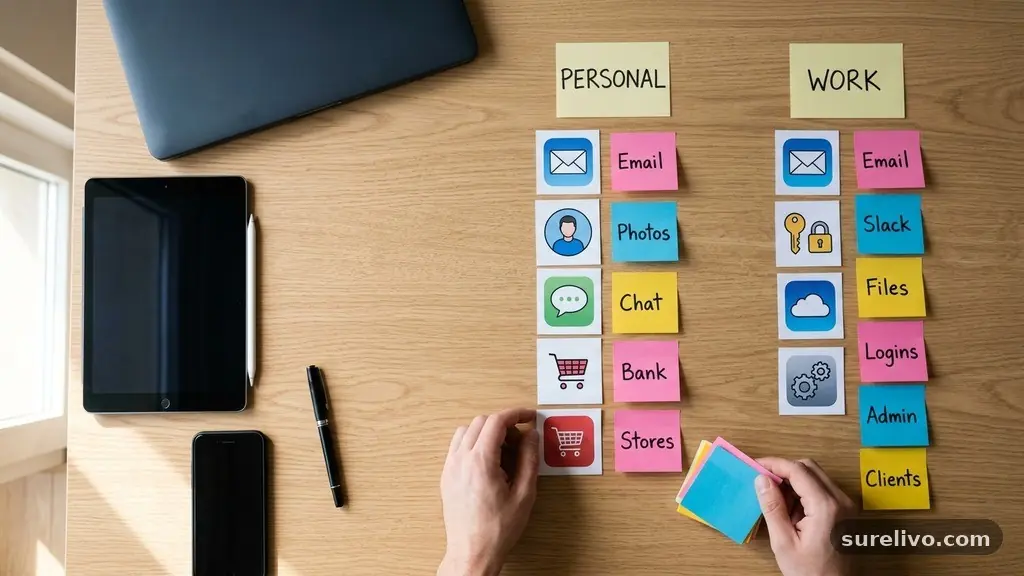
Start with an honest inventory before changing settings. Write down the accounts you use for work, including your company email, collaboration tools, cloud storage, calendar, video meetings, project management software, and any single sign-on (SSO) portal. Then list personal services such as private email, banking, shopping, social media, family calendars, photo storage, and personal cloud backups.
This exercise reveals where the real overlap occurs. You may discover that work contacts are syncing into a personal address book, personal photos are being backed up to a company-managed cloud account, or a browser is remembering passwords for both environments. Make a simple note beside each app: work only, personal only, or shared device with separate sign-in.
Pay special attention to apps that quietly share data in the background. A calendar app might combine two schedules, a note-taking tool might upload documents automatically, and a keyboard or file manager may retain recent content. Those connections matter just as much as the visible account screen.
Common mistake: people focus only on email. Email is important, but contacts, cloud drives, browser history, saved passwords, downloaded files, and notification previews can create just as much confusion. A complete inventory gives you a clear target instead of leaving hidden links in place.
Step 2: Choose the Right Separation Method for Your Device
Not every device offers the same level of account isolation. On Android, an employer may provide an Android Work Profile, which creates a managed work space alongside your personal profile.
Work apps usually carry a briefcase badge, and company administrators can apply policies to that work area without controlling every personal app. If your employer supports it, ask which enrollment method is approved rather than installing an unofficial management tool.
Apple devices generally separate accounts through different Apple IDs, app-specific sign-ins, privacy settings, Focus modes, and employer management. An organization may also use mobile device management (MDM) to manage business apps, security requirements, or corporate data. MDM capabilities vary, so read the enrollment notice carefully and ask what your employer can see or erase.
Computers offer other useful choices. Separate operating-system user accounts provide stronger boundaries than simply opening another browser tab.
Browser profiles are lighter and faster: each profile can hold its own bookmarks, extensions, history, cookies, and saved sessions. They’re useful for a personal computer, but they aren’t a substitute for a managed work profile if your company requires formal data separation.
Choose based on risk and convenience. A freelancer handling ordinary scheduling may need only browser profiles and account switching. Someone working with customer records, financial data, or confidential product plans may need a dedicated work profile, encrypted storage, and employer-approved MDM.
Common mistake: assuming two browser windows equal two secure environments. They don’t.
A personal extension can still access pages in a work browser profile, and a downloaded file can still land in a shared folder. Use the strongest built-in separation that fits the information you handle.
Step 3: Create Clear Work and Personal Profiles
Now build the separation you selected. On a computer, create a distinct operating-system user account if practical, then add a dedicated work browser profile inside it.
Name profiles plainly, such as “Work” and “Personal,” and choose visibly different colours or avatars. That small visual cue helps you notice an incorrect sign-in before you send a message or upload a document.
On Android, follow your organization’s enrollment instructions for the work profile. Keep work applications inside the designated work area and avoid downloading a second, unmanaged copy of the same app unless your company permits it. On an iPhone or iPad, use the employer’s approved app container or management process, and keep personal services signed in through your own account.
During setup, disable automatic account addition wherever the device offers that option. Some operating systems suggest adding every known account to mail, contacts, calendars, or cloud storage.
Decline those prompts unless there is a specific reason to combine the services. A clean setup is easier to maintain than a tangled one that must later be untangled.
Give the profiles different home-screen arrangements. A work profile might show email, calendar, documents, and meeting apps.
A personal profile could show photos, entertainment, shopping, and family communication tools. This isn’t just cosmetic; the layout makes the intended context obvious when you’re moving quickly.
Common mistake: using a work account as the “main” device account because it was the first one installed. That can make contacts, backups, purchases, and device recovery depend on an employer’s account. Decide which account owns the device and keep that ownership separate from the account that grants access to work resources.
Step 4: Separate Sign-Ins, Passwords, and Verification
Give each environment its own credentials. Don’t reuse a personal password for a company account, even if the work service uses SSO and seems protected by your organization.
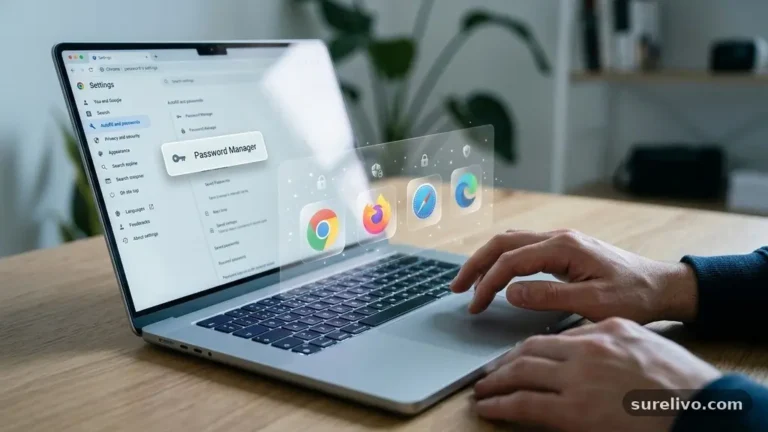
A breach at one service should not provide a shortcut into another. Use a reputable password manager with separate folders or vaults for work and personal credentials, provided your employer allows it.
Account switching can be convenient, but check which identity is active before taking an important action. Google Workspace, Microsoft 365, Slack, and similar services may keep several sessions open at once. Look for the profile photo, email address, or organization label before sending a message, sharing a file, approving a request, or making a purchase.
Turn on multi-factor authentication (MFA) for both work and personal accounts. An authenticator app or hardware security key is usually safer than relying only on text messages, although the best option may be determined by your employer. Store recovery codes somewhere safe and separate from the device; if the phone is lost, you still need a way to regain access.
Review signed-in sessions once the accounts are configured. Remove old phones, borrowed computers, and abandoned browser sessions.
If an account offers security alerts, leave them enabled. They may feel repetitive at first, but a sign-in warning can reveal that you opened a work account in the wrong browser profile or that someone else has obtained a password.
Common mistake: saving every password in the browser’s default vault without checking which profile owns it. Browser profiles can reduce confusion, but a shared computer account or synced browser may expose more than expected. Keep sensitive credentials in an approved password manager and verify its sync destination.
Step 5: Review Device Permissions and Privacy Controls
Separation becomes meaningful only when apps receive appropriate access. Open the permission settings for work and personal applications, then review location, contacts, calendars, photos, microphone, camera, Bluetooth, and local-network access. A work messaging app may need your microphone for calls, but it may not need access to your entire personal photo library.
Use privacy settings to limit how data moves between apps. On iOS, choose selected photos instead of the full library where possible.
On Android, use one-time or approximate location access when a permanent precise location is unnecessary. On a computer, check which apps can access folders, removable drives, screen recording, or accessibility features.
Work tools sometimes need broad permissions because they enforce company security or protect business files. That isn’t automatically a problem, but you should understand the scope.
Ask your IT team whether an administrator can view device details, remove work data, enforce a passcode, or remotely erase the whole device. A reputable employer should be able to explain the boundary between managed work data and personal content.
Keep shared storage under control. If a work app can open files from personal cloud storage, turn that connection off unless it is necessary.
Likewise, don’t grant a personal note-taking or scanning app access to confidential work folders. Data separation depends on these small permissions as much as on the sign-in screen.
Common mistake: approving permissions quickly during installation and never revisiting them. Apps change, operating systems add new controls, and an update may introduce a new request. Review permissions after major updates and whenever you install a tool that handles documents, photos, messaging, or location.
Step 6: Control Notifications and Visual Signals
Notifications are one of the most common ways work and personal life spill into each other. Start by deciding which alerts must appear immediately.
A security warning, urgent client call, or on-call message may deserve a sound. Routine newsletters, social reactions, and low-priority project updates can wait for a scheduled review.
Use notification management to hide sensitive previews on the lock screen. A message that displays “salary review,” “customer complaint,” or an internal project name can expose information to anyone nearby. Set previews to show only the app name, or require device authentication before showing message content.
Apple Focus modes can create useful time-based boundaries. A work Focus might allow calls from colleagues and alerts from business apps during working hours, while a personal Focus silences project tools in the evening. Android offers comparable notification channels, schedules, and modes, though the names differ by manufacturer and software version.
Make the boundary visible without making it annoying. Use different notification sounds, wallpapers, or home-screen pages for work and personal contexts.
If your phone supports a work-profile pause function, pause work alerts after hours rather than uninstalling business apps. That preserves access for genuine emergencies while preventing constant interruptions.
Common mistake: silencing everything and missing a security alert or urgent message. Test your settings with a colleague or a second account. Confirm that high-priority notices still arrive, that previews reveal no confidential text, and that your evening settings actually activate at the times you expect.
Step 7: Keep Files, Contacts, and Browsing in the Correct Place
Data separation needs a file strategy. Create clearly named work and personal folders, and store each category in its intended cloud service.
Avoid a generic “Downloads” folder for everything if the device is shared by both contexts. Move business documents into the company-approved drive and personal receipts, photos, and forms into your private storage.
Check automatic downloads and offline files. Collaboration tools often save documents locally so they remain available without an internet connection.
That can be useful, but it also leaves confidential material on the device after a project ends. Remove offline copies when they’re no longer necessary, and empty temporary folders before lending the device to someone else.
Contacts deserve special attention. If a work email account is allowed to sync contacts, confirm whether those entries become visible to personal calling, messaging, or social apps. Some systems let you keep work contacts inside the work profile; others provide a toggle that prevents them from appearing in personal suggestions.
Use browser profiles consistently. Open company sites only in the work profile, keep personal shopping and banking in the personal profile, and avoid copying a work link into a personal note or messaging thread. If you accidentally cross the boundary, close the session, sign out, and clear the relevant history or downloaded file rather than assuming the mistake is harmless.
If your employer has a formal policy, follow it even when your personal method seems easier. The U.S. National Institute of Standards and Technology offers useful background on privacy risk management and protecting personal information, which can help explain why careful handling matters beyond a single app.
Common mistake: relying on file names alone. “Final-report.pdf” says nothing about ownership or sensitivity. Use folders, storage destinations, and profile boundaries together so a document’s location reinforces its status.
Step 8: Test the Setup and Build Small Habits
After configuration, test the device as if you were using it on a busy day. Send a test message from the work account to a colleague or yourself and verify the sender address.
Open a personal calendar and confirm that work appointments haven’t appeared unless you intentionally chose to share them. Download a harmless sample file in each profile and check exactly where it is saved.
Test the uncomfortable scenarios too. Lock the screen and inspect notification previews. Switch from work to personal mode during a meeting.
Try opening a work document from a personal app, then see whether the system blocks it or offers a sharing prompt. These checks show where your chosen method is strong and where human attention still matters.
Create a short routine for transitions. At the start of work, open the work profile, check the business calendar, and confirm the correct account in your main communication app. At the end, close work tabs, pause the work profile or activate a personal Focus mode, and place unfinished tasks in the company’s task system rather than leaving them scattered across personal notes.
Review the arrangement monthly and after major changes. A new employer, phone replacement, operating-system update, or added collaboration app can alter the boundaries. Remove accounts you no longer use, revoke access from old devices, update recovery details, and confirm that backups still go to the intended destination.
Common mistake: treating separation as a one-time installation project. The device changes as your work changes. A five-minute check each month is easier than repairing a privacy problem after a file, calendar entry, or message reaches the wrong audience.
Frequently Asked Questions
Can I separate work and personal accounts without using two devices?
Yes. Browser profiles, separate operating-system users, different app sign-ins, notification controls, and an Android Work Profile can provide useful separation on one device.
The right choice depends on your employer’s rules and the sensitivity of your data. For highly confidential work, an employer-managed profile or dedicated device may provide stronger control than personal settings alone.
Can my employer see my personal photos and messages?
It depends on the management system and how the device is enrolled. A properly configured work profile is designed to separate business data from personal content, while MDM may provide administrators with device and security information.
Read the enrollment explanation and ask your IT department what it can view, restrict, or erase. Don’t assume that a work app has no visibility simply because it sits beside personal apps.
Is switching accounts enough to protect my information?
Account switching reduces accidental sign-ins, but it isn’t complete protection by itself. Shared downloads, synced contacts, browser extensions, copied links, and notification previews can still cross the boundary. Combine separate accounts with appropriate permissions, distinct browser profiles, secure storage, MFA, and a regular review of connected services.
What should I do if I accidentally send work information from a personal account?
Act quickly and follow your organization’s incident-reporting policy. Don’t quietly delete evidence or assume that recalling a message worked.
Tell the appropriate manager or security contact what was sent, to whom, and when, then follow their instructions. Afterward, identify the cause—such as the wrong browser profile or an auto-complete contact—and adjust the setup to prevent a repeat.
Should work or personal accounts own the device?
For a personally purchased device, your personal account will often own the operating-system backup, purchases, and recovery process, while work services remain separate. A company-issued device may be owned and managed by the employer.
Follow the written policy, and ask before mixing personal backups or purchases with a managed device. Ownership determines who can administer, reset, or recover the device.
Make the Boundary Easy to Maintain
Separating Work and Personal Accounts on One Device works best when the technology and your habits support each other. Use distinct profiles, strong credentials, MFA, careful permissions, controlled notifications, and clearly assigned storage. Then test the setup and review it whenever your device, employer, or apps change.
Start with one improvement today: create the correct work profile, remove an unnecessary account sync, or hide sensitive notification previews. Small decisions add up to calmer transitions and better data separation. If you’ve found a setup that keeps both sides manageable, share the approach with a colleague or family member who could benefit from it.