Why Copying Large Files to a USB Drive Can Take Longer Than Expected?
Copying large files to a USB drive can take longer than expected, even when the drive appears modern and your computer shows a fast connection. The delay usually comes from several factors working together: the USB transfer speed, the drive’s actual write performance, the file size and file count, and the condition of the source device.
Understanding those details makes a frustrating wait much easier to diagnose. You’ll learn how to identify the bottleneck, choose better settings, avoid common mistakes, and estimate whether a transfer is genuinely slow or simply dealing with difficult data.
Step 1: Check the USB connection and its advertised speed
Start with the physical connection. A USB drive may support USB 3.0 or USB 3.2, but that doesn’t mean every port or cable in the chain supports the same standard.
If a fast flash drive is plugged into a USB 2.0 port, the entire transfer is limited by the slower connection. The same thing can happen when a USB-C drive is connected through an older adapter, hub, or cable.
USB 2.0 has a much lower practical throughput than USB 3.x connections. Even USB 3.0 and USB 3.2 labels can be confusing because manufacturers may advertise theoretical connection speeds while the flash memory inside the drive writes far more slowly. A drive might connect at a high speed but sustain a much lower rate once its small cache fills.
Look for blue USB-A ports, SuperSpeed markings, or the specifications for your computer model. USB-C describes the connector shape, not automatically the speed. One USB-C port may support USB 3.2, while another may only support an older standard or may be shared with other hardware.
- Try a different port directly on the computer.
- Avoid a low-cost hub during large transfers.
- Use the cable supplied with the drive if it has a detachable cable.
- Check whether the operating system identifies the device as USB 2.0 or USB 3.x.
Common mistake: assuming that a USB-C connector guarantees high USB transfer speed. The connector is only the shape; the port, cable, controller, and storage chips all matter.
Step 2: Compare the drive’s real write speed with its advertised speed
The number printed on a flash drive package often refers to a best-case read speed, not the speed at which it can accept a long stream of data. Reading from a drive and writing to it are different tasks. Manufacturers may also measure performance with large, highly compressible test files, while your real-world transfer may include videos, archives, photos, and application files.
For a large copy, the important figure is the sequential write speed. This describes how quickly the drive can write a continuous stream of data.
A cheap flash drive might begin quickly because a small high-speed cache absorbs the first portion. After that cache fills, the rate can drop sharply.
Drive performance also depends on the type of data. A single 20 GB video file usually transfers more efficiently than tens of thousands of small documents.
The drive must create file entries, update metadata, and perform many separate operations. That behaviour is measured more closely by random write speed, which is usually much lower than sequential performance.
| Transfer situation | What usually affects it most |
|---|---|
| One large video or disk image | Sequential write speed and connection quality |
| Thousands of photos or documents | Random write speed and file count |
| Several large folders | Source drive, destination drive, and background activity |
| Transfer that starts fast, then slows | Cache exhaustion, heat, or limited flash memory performance |
If you want a clearer picture, use a reputable disk benchmark designed for your operating system, but don’t run demanding tests on a drive containing irreplaceable files without a backup. Official technical information about USB specifications is available through the USB Implementers Forum document library.
Common mistake: judging a drive by its advertised read speed alone. For copying files onto the USB device, sustained write performance is the figure that matters.
Step 3: Look at file size and file count separately
“Large files” can mean two very different things. A folder containing one 50 GB video is large in total size but relatively simple for a storage device to process. A folder containing 500,000 small files may occupy only 15 GB, yet take much longer because the computer must handle each file individually.
Every file carries overhead. The operating system has to locate it, read its attributes, create a destination entry, allocate space, write the contents, and update the file system.
With a high file count, those small operations dominate the transfer. The drive’s random write speed becomes more important than its sequential write speed.
Before starting, inspect both the total file size and the number of items. On Windows, selecting a folder and opening its properties will usually show an approximate size and item count.
On macOS, Get Info provides similar information. If a folder contains huge numbers of tiny files, consider creating an archive first.
An archive made with a format such as ZIP or 7z combines many files into a smaller number of larger data streams. That can reduce file-system overhead, though compression takes processor time and may not shrink already compressed files such as MP4 videos, JPEG photos, or many software installers. If preserving folder access and individual files matters, archiving may be less convenient.
For backups, a dedicated backup application can also be more efficient because it may track changed files and avoid repeatedly copying unchanged data. For a one-time move, a simple archive can be practical.
Common mistake: assuming a smaller total folder size will always finish sooner. A high file count can make a modest-sized transfer slower than one much larger continuous file.
Step 4: Inspect the file system and choose a suitable format
The file system controls how the USB drive stores names, permissions, space allocation, and other metadata. Common choices include FAT32, exFAT, and NTFS. Each has strengths, and the best option depends on where you plan to use the drive.
FAT32 is widely compatible with older computers, cameras, televisions, and game consoles, but it has a maximum individual file size of 4 GB. That makes it unsuitable for many modern video files, disk images, and large project archives. exFAT supports large files while remaining broadly compatible across current Windows and macOS systems. NTFS is a strong choice for Windows-only use and supports permissions and other Windows features, although some non-Windows devices may only read it or may not recognise it at all.
| File system | Useful for | Potential limitation |
|---|---|---|
| FAT32 | Older devices and broad basic compatibility | Individual files cannot exceed 4 GB |
| exFAT | Large files shared between modern systems | Some older devices may not support it |
| NTFS | Windows storage, permissions, and large files | Compatibility can be weaker outside Windows |
Changing the file system normally requires formatting the drive, which erases its contents. Copy anything important elsewhere first, then format using the operating system’s disk utility. Formatting doesn’t turn a slow flash drive into a fast one, but the right format prevents errors and compatibility problems that interrupt a transfer.
Common mistake: reformatting without checking device support or backing up existing files. A format can solve a compatibility problem while creating permanent data loss if handled carelessly.
Step 5: Check the source drive and competing activity
The USB drive isn’t always the bottleneck. If you’re copying from an older hard disk, a nearly full SSD, a network folder, or a cloud-synced directory, the source may not deliver data quickly enough. The computer can only write as fast as the slowest active part of the path.
A traditional hard disk may slow down when it reads many scattered files because its mechanical head must move between locations. An SSD generally handles scattered reads better, but its speed can fall when it is nearly full, overheated, or busy with background maintenance. Files stored on a network share introduce additional limits from Wi-Fi, Ethernet, the server, and network traffic.
Pause unnecessary tasks during the copy. Video editing, game downloads, antivirus scans, cloud synchronisation, virtual machines, and system updates can all compete for storage bandwidth.
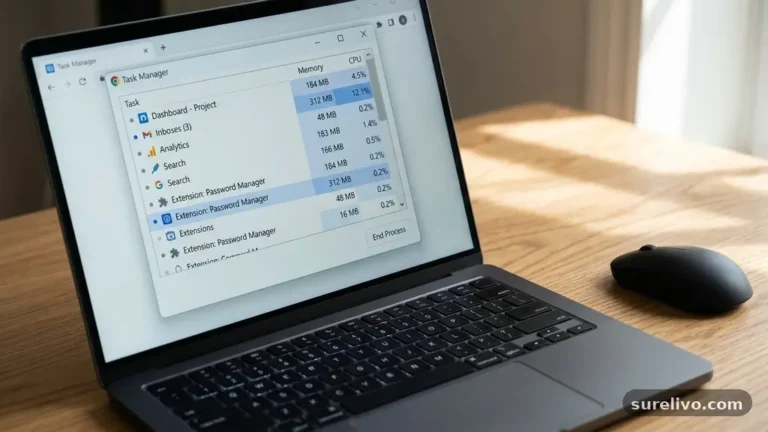
On Windows, Task Manager can show disk activity; macOS provides activity information through Activity Monitor. Watch both the source and destination drives rather than looking only at the copy window.
It also helps to copy from a local internal drive instead of directly from a browser download folder that is still being synchronised or modified. If a file changes while it is being copied, the operating system may need to retry, report an error, or produce an incomplete result depending on the application.
Common mistake: cancelling a transfer because the USB drive appears idle while the source is busy. A quiet destination can simply mean that it is waiting for the source to supply the next block of data.
Step 6: Watch for heat, space, and drive health problems
Flash memory devices can slow down as they heat up. A small USB stick has very little surface area for cooling, and sustained writing can raise its temperature quickly.
Some drives reduce performance automatically to protect their components. This is called thermal throttling, and it may appear as a transfer that begins normally before dropping to a crawl.
Leave room around the drive and avoid covering it with clothing, papers, or a laptop sleeve during a long copy. If the drive is unusually hot, allow it to cool before trying again. Repeated overheating can also shorten the useful life of low-cost flash storage.
Available space matters too. A nearly full drive may have fewer free blocks available for efficient writing and internal housekeeping.
Some flash drives show plenty of nominal capacity but perform poorly near the limit. Keep a reasonable margin of free space, especially if the drive is used for repeated transfers rather than occasional storage.
Unexpected pauses, disappearing files, corrupted data, or repeated error messages deserve attention. They may indicate a damaged connector, failing flash memory, a counterfeit-capacity drive, or a file-system problem.
Copy important data off the device, then use the operating system’s error-checking tools. Do not repeatedly force a failing drive through large writes while treating it as a backup.
If the data matters, verify the copied files by opening several of them or comparing checksums for critical archives. A completed progress bar does not always prove that every file is usable.
Common mistake: unplugging the drive as soon as the visual copy reaches 100 percent. The operating system may still be flushing cached data, so use the safe-eject command and wait for confirmation.
Step 7: Improve the transfer method and estimate the waiting time
A little preparation can make a slow copy more predictable. First, close files that are open in another application.
Then copy a small test batch and observe the sustained speed after the first minute, rather than relying on the first few seconds. Early performance may reflect a temporary cache and can give an unrealistically optimistic estimate.
Estimate the time by dividing the total data size by the sustained transfer rate. For example, a 100 GB transfer running steadily at 50 MB per second will take roughly 34 minutes before accounting for file-system overhead. The displayed estimate may fluctuate because the operating system measures recent activity, not the entire job, and because the drive may alternate between fast and slow phases.
For very large jobs, copy in batches. This makes it easier to identify a problematic folder and reduces the chance that one error stops everything.
It also gives the drive time to cool between groups if heat is a concern. Avoid repeatedly cancelling and restarting the same transfer, since that can leave partial folders and make it harder to know what has already been copied.
Use a reliable copy utility if you need restartable transfers, logs, or verification. Basic drag-and-drop is fine for ordinary jobs, but specialised tools can preserve timestamps, retry temporary errors, and continue after an interruption. Confirm that the chosen tool is appropriate for your operating system and that its options match your needs.
Common mistake: comparing the advertised maximum connection speed with the time required for a real transfer. A stable, honest estimate based on sustained write speed is much more useful than a headline number.
Step 8: Decide whether replacing the drive is the sensible fix
Sometimes careful troubleshooting shows that the flash drive is simply too slow for the job. That is common with inexpensive models designed for occasional document storage rather than sustained video backups or large software libraries. If the same drive remains slow on multiple computers, direct high-speed ports, and different file types, its own write hardware is probably the limiting factor.
A portable solid-state drive (SSD) is often a better choice for frequent large transfers. It usually offers faster sustained writing, stronger performance with mixed files, and better consistency than a basic flash drive.
It can also be easier to replace or use with a protective enclosure. The trade-off is higher cost and, depending on the model, greater power consumption.
Choose capacity with room to spare and check independent sustained-write tests rather than only peak read figures. Look for clear information about the interface, such as USB 3.2, and confirm that your computer can use that connection. A fast SSD attached to a USB 2.0 port will still behave like a slow USB 2.0 storage device.
Keep the old drive for low-demand tasks only if it remains reliable. It may be perfectly suitable for a few documents, temporary file movement, or a boot utility, but don’t trust it with the only copy of important photographs or business records. Storage speed is helpful; storage reliability is essential.
Common mistake: buying a drive based solely on capacity or a premium-looking connector. Check sustained write behaviour, warranty information, compatibility, and independent testing before paying for an upgrade.
Frequently asked questions
Why does my USB transfer start quickly and then slow down?
Many flash drives use a small fast cache that fills during the first part of a transfer. Once the cache is full, data must be written directly to slower flash memory. Heat, limited free space, and a high file count can make the slowdown more noticeable.
Is USB 3.0 always faster than USB 2.0?
USB 3.0 offers much greater potential bandwidth, but the result depends on the computer port, cable, drive controller, and flash memory. A poorly performing USB 3.0 flash drive can still write slowly, although it will generally have more headroom than the same device on USB 2.0.
Will changing FAT32 to exFAT make copying faster?
Usually, changing the file system alone won’t produce a dramatic speed increase. exFAT is useful because it supports files larger than 4 GB and works across many modern systems. Performance is still mainly determined by the storage hardware, file pattern, connection, and background activity.
Why do thousands of small files take longer than one large file?
Each item requires separate metadata operations, directory updates, and space allocation. That creates more random activity and file-system overhead. Combining the files into an archive can reduce the number of write operations, although creating and extracting the archive also takes time.
Should I stop a transfer if the progress bar appears frozen?
Not immediately. The system may be processing a large group of small files, waiting for the source drive, flushing cached data, or handling a slow section of flash memory. Check disk activity and give it time, but stop the process if you see repeated errors, the drive disconnects, or important files begin showing corruption.
Conclusion
Copying Large Files to a USB Drive Can Take Longer Than Expected because the connection, source drive, file system, file count, heat, and destination hardware all influence the result. Check the actual port and cable, judge sustained write speed rather than marketing figures, and distinguish one large file from thousands of small ones.
For your next transfer, run a small test, keep background activity low, leave free space on the drive, and eject it safely when finished. If performance remains poor across different computers, a quality portable SSD may be the practical answer. Share what kind of files and USB hardware you’re using, and the slowest part of the process becomes much easier to identify.