How to Review App Permissions After a Major Phone Update
Reviewing App Permissions After a Major Phone Update is a practical way to regain control of your privacy settings before apps quietly resume access to sensitive information. A system upgrade can change permission labels, reset choices, add new controls, or make old settings easier to overlook.
Taking a little time now can also improve battery life and reduce distracting alerts. You’ll learn which permissions deserve close attention, how Android and iOS handle them differently, and how to make sensible choices without breaking the apps you rely on every day.
1. Start by Noting What Changed in the Update
Before opening individual apps, read the phone’s update notes and look through any privacy-related announcements shown after installation. A major phone update might introduce a new permission manager, rename an existing setting, or move controls into a different part of the operating system. Android may add a new privacy dashboard or more detailed location choices, while iOS may place familiar options under a redesigned Privacy & Security menu.
Don’t assume that an update has either preserved every setting or revoked every permission. Most phones try to retain your previous choices, but the way those choices are displayed can change. An app that previously showed “Location: Always” might now be presented with separate options for precise location, approximate location, and background access.
Write down anything that seems unusual. For example, if the update mentions improved voice features, check microphone permission more carefully.
If it advertises a new photo picker, expect the way photo and video permissions work to be different from before. These clues tell you where to spend your attention rather than forcing you to inspect every menu at random.
A common mistake is treating the update’s welcome screen as a complete privacy review. It isn’t.
Those notices usually highlight major features, not every app that can access your contacts, camera, files, or location. Read them as a map of possible changes, then verify the actual settings on your phone.
2. Open the Main Permission Manager
Next, go to the operating system’s central list of app permissions instead of opening apps one at a time. On many Android phones, this is found through Settings > Privacy or Settings > Security and privacy > Permission manager, although manufacturers may use slightly different names. The privacy dashboard can also show which apps recently accessed sensitive categories and when that access happened.
On an iPhone, open Settings > Privacy & Security. You’ll find categories such as Location Services, Contacts, Photos, Bluetooth, Microphone, Camera, and Tracking. iOS doesn’t use the same “permission manager” wording as Android, but the category-based layout serves a similar purpose: it lets you see which apps have requested a particular type of access.
Review permissions by category first. A list of every installed app can feel overwhelming, while a category such as Microphone may immediately reveal that an unfamiliar game, shopping app, or old social network has access you no longer want to grant.
Categories also make patterns easier to spot. If twelve apps can use your location, you can decide which ones genuinely need it.
Android users should pay attention to the privacy dashboard’s timeline when it’s available. It can reveal that an app accessed the camera last night or used location repeatedly in the background. On iOS, App Privacy Report can provide similar clues after you turn it on and allow time for it to collect activity.
The mistake to avoid here is searching only for a setting called “permissions.” Phone makers reorganise menus, especially after a major phone update. Use the Settings search field for terms such as “privacy,” “location,” “microphone,” or “camera” if the expected menu isn’t where you remember it.
3. Check Location Access With Special Care
Location access deserves its own review because it can reveal where you live, work, shop, exercise, and spend your free time. For each app, ask what the feature actually needs. A navigation app may need location while you’re using it, whereas a weather app might function with approximate location or a manually selected city.
Android commonly offers choices such as Allow all the time, Allow only while using the app, Ask every time, and Don’t allow. The exact choices vary by Android version and app type. iOS often provides options such as Never, Ask Next Time or When I Share, While Using the App, and Always. Neither platform treats every app identically, so read the wording rather than selecting the most restrictive option automatically.
Also inspect the precise-location switch. A food delivery app may need a fairly accurate position while a courier is finding you, but a recipe app has no sensible reason to know your exact coordinates. Turning off precise location while retaining approximate location can preserve useful local recommendations with less exposure.
Background location is the setting most likely to deserve a firm “no.” Some fitness, safety, and navigation tools have a legitimate reason to update location when the screen is off. A discount app or simple puzzle game usually doesn’t. Restricting background access may also reduce battery drain caused by repeated location checks.
After changing this permission, test the app’s important feature. If directions stop updating during a journey, restore access while using the app or grant background access only if it’s genuinely necessary. The common mistake is denying location to everything without considering safety features, emergency tools, transport apps, or accessibility services that may depend on it.
4. Review Camera, Microphone, and Nearby Device Access
Camera permission and microphone permission deserve a deliberate check because they involve sensors that can capture private spaces, conversations, images, and video. A video calling service may need both.
A document scanner needs the camera but not the microphone. A flashlight app should need neither.
Open the camera and microphone categories and remove access from apps that no longer use those features. If you find a permission granted to an app you barely recognise, check its purpose before deciding.
Some password managers use the camera for QR-code setup, and some accessibility tools use the microphone for voice commands. The goal isn’t to deny access reflexively; it’s to match access with a clear function.
Android and iOS both provide visual indicators when the camera or microphone is active. Android commonly shows a green indicator, while iOS displays coloured indicators near the status area.
If an indicator appears unexpectedly, close recently used apps and inspect the privacy activity record. A single indicator doesn’t prove misuse, since an active call or voice feature may explain it, but it gives you a reason to investigate.
Look at Bluetooth and nearby-device access as well. Smart-home controllers, wireless headphones, car apps, and file-sharing tools may need it.
A casual game or a basic calculator generally doesn’t. Some apps request nearby-device permission for analytics or local advertising rather than a feature you care about.
A frequent mistake is deleting an app’s camera access and then blaming the phone when scanning or video calling fails. Permission changes can break a specific function without harming the rest of the app. If something stops working, grant the narrow permission required, use the feature, and then decide whether you want to keep that access enabled.
5. Examine Photos, Contacts, and Files
Photo and video permissions can expose a large amount of personal information, particularly if your library contains family pictures, travel documents, screenshots, or images of identification. Newer versions of Android and iOS often let you share selected images instead of granting an app access to the entire library. Choose that limited option whenever it meets the app’s purpose.
For example, a marketplace app needs one or two product photos to create a listing, not every image you’ve ever saved. A photo-printing service may need access to selected albums or files during an order, but you can revoke that access afterward. A social app used only for text messages may not need photo access at all.
Contacts access deserves equal attention. Messaging apps, email tools, and caller-identification services may use contacts to find people you know, but uploading an address book can share information about people who never agreed to use that service. If an app offers a manual contact picker, use it instead of allowing full access.
Check file and document permissions on Android, especially if an app can browse shared storage. A PDF tool may need files you explicitly select, while a wallpaper app has no credible reason to scan your documents. On iOS, the Files app and document picker often provide a more controlled way to share one item without opening an entire folder.
The common mistake is assuming that “Photos: Limited Access” means the app can never request more. It may ask again when you try to upload another image.
That’s normal. Treat each request as a decision, not as an inconvenience, and avoid granting broad access simply because the app’s prompt is persistent.
6. Audit Notifications, Tracking, and Advertising Controls
Notification permissions don’t expose the same kind of sensor data as location or the camera, but they affect privacy, attention, and the information visible on your lock screen. Review which apps can send alerts, then decide whether those messages are useful enough to interrupt you. Shopping apps, games, and social platforms often request permission for promotions rather than essential account activity.
Keep notifications for security codes, account warnings, delivery updates, health reminders, and direct messages if you rely on them. Turn off promotional categories where the phone allows that level of control. You can often keep an app installed while silencing marketing notifications entirely.
On iOS, review App Tracking Transparency under Privacy & Security. This controls whether apps can ask to track your activity across other companies’ apps and websites for advertising or measurement.
Refusing permission doesn’t remove every advert, but it limits one important form of cross-app tracking. Android offers its own advertising and privacy controls, although the labels and available choices depend on the device and Android release.
Look at lock-screen previews too. A notification from a banking app, health service, or private messaging app may reveal sensitive information to anyone who can see your phone. Choose “when unlocked,” hide sensitive content, or disable previews for specific apps.
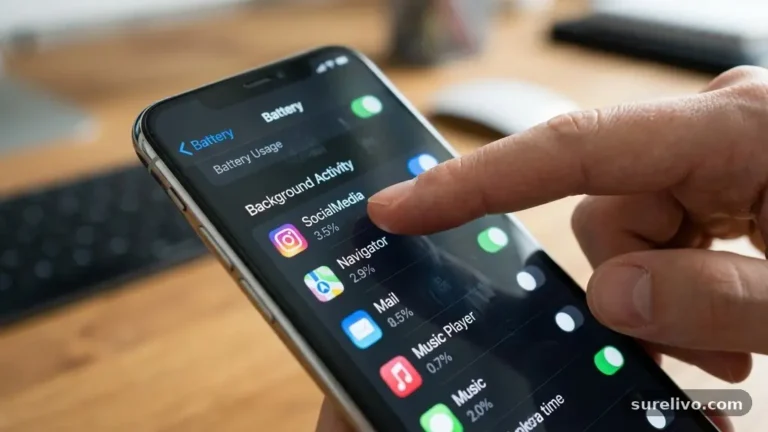
Background app refresh on iOS and background data or battery settings on Android can also influence how often apps work when you aren’t actively using them. Don’t disable these controls indiscriminately; some apps need background activity for messages or safety alerts. The mistake is focusing only on whether notifications are on, while ignoring what the notification displays and how frequently the app operates behind the scenes.
7. Compare Permissions With Each App’s Real Purpose
Once you’ve reviewed the major categories, inspect individual apps that have broad or unusual access. Start with apps you haven’t opened recently, apps installed before the update, and apps from developers you no longer recognise. An old app may retain permission even though you stopped using the feature that justified it months ago.
Use a simple question for every permission: What exact action would fail without this access? If the answer is clear, keep the permission in its narrowest useful form. If the answer is vague—“the app probably needs it”—remove access and test the app later.
This method works better than judging an app by its category alone. A social app may need the camera for posting, but that doesn’t mean it needs continuous location access.
Pay attention to permissions that seem disproportionate. A calculator asking for contacts, a wallpaper tool requesting a microphone, or a simple game requesting precise location should prompt a closer look. Read the app’s explanation, check whether the permission is optional, and consider uninstalling the app if its core purpose doesn’t justify the request.
Unused-app controls can help. Android may automatically revoke permissions from apps you haven’t used for a while, depending on your settings and the app. Even when automatic resetting is enabled, don’t rely on it as your only safeguard. iOS may offload unused apps while retaining their documents and settings, so check whether an app is still present and trusted before reinstalling it.
A common mistake is confusing a permission with an app’s entire data collection practice. Removing contacts access doesn’t necessarily delete contacts already uploaded to the company’s servers. If you’re concerned about past sharing, visit the app’s account and privacy settings, delete stored data where possible, and close the account if you no longer need it.
8. Test the New Settings and Schedule a Follow-Up
After making changes, test the functions you use most. Place a call through your preferred messaging app, scan a document, request directions, upload one selected photo, connect a wearable, and confirm that important notifications arrive. Testing turns permission review into a controlled adjustment rather than a frustrating guessing exercise.
If an app fails, note the exact feature and the permission it requests. Grant access temporarily if you trust the app, use the feature, and then reconsider whether the access can be restricted afterward.
Some apps explain their requirements clearly; others simply show a generic error. In the latter case, check the app’s settings for a more limited mode before restoring broad access.
Take a screenshot or make a short note of any unusual setting you changed. This is helpful after the next app update, factory reset, or phone migration. Permission choices can also change when an app introduces a new feature, so your review isn’t a permanent verdict on the software.
Schedule another quick check in a month, then repeat it after major operating-system updates. You don’t need to inspect every permission weekly. A short review after installing several new apps, changing phones, or noticing unusual battery use is usually enough to keep your choices current.
Keep the operating system and apps updated from legitimate app stores, and remove software you no longer use. Updates can fix security flaws, but they can also introduce new requests that deserve attention. The mistake to avoid is assuming the job ends when you tap “Done.” A permission review works best as a light maintenance habit, not a one-time panic response.
Frequently Asked Questions
Can a major phone update change my existing app permissions?
It can change how permissions are presented and may alter certain choices when the operating system introduces a new privacy model. Most updates try to preserve your previous decisions, but an app may request access again after adding a feature or meeting a new system requirement. Check the central privacy settings rather than relying on memory.
Should I deny every permission an app requests?
No. Deny permissions that don’t match the app’s purpose, but allow necessary access in the narrowest available form.
A navigation app needs location to provide directions, and a video-call app needs camera and microphone access during calls. If a feature breaks, review the specific request instead of granting every permission at once.
What’s the difference between approximate and precise location?
Approximate location tells an app your general area, while precise location provides a much more accurate position. Weather, local news, and some shopping features often work with approximate information. Turn on precise location only when the app needs accuracy, such as navigation, delivery tracking, or finding a nearby device.
Does turning off a permission delete data an app already collected?
Usually, no. Revoking permission prevents or limits future access on the phone, but information previously uploaded may remain on the company’s servers. Use the app’s privacy or account controls to request deletion, remove stored content, or close the account if you no longer want the service to retain your information.
Where can I find official information about Android permissions?
Android’s official explanation of app permissions describes common permission types and how to change them. Menu names can differ between manufacturers, so use the instructions as a starting point and confirm the exact options shown on your own phone.
Keep Your Permission Choices Current
Reviewing App Permissions After a Major Phone Update gives you a chance to remove stale access, limit background activity, and keep sensitive features available only to apps that truly need them. Start with location, camera, microphone, contacts, photos, notifications, and tracking, then test the apps you use most.
Make small, informed changes rather than denying everything in one sweep. Revisit the settings after new app installations and future updates, and investigate any unexpected sensor indicator or privacy-dashboard entry. A few minutes of reviewing App Permissions After a Major Phone Update can leave your phone feeling more private, predictable, and comfortably under your control.