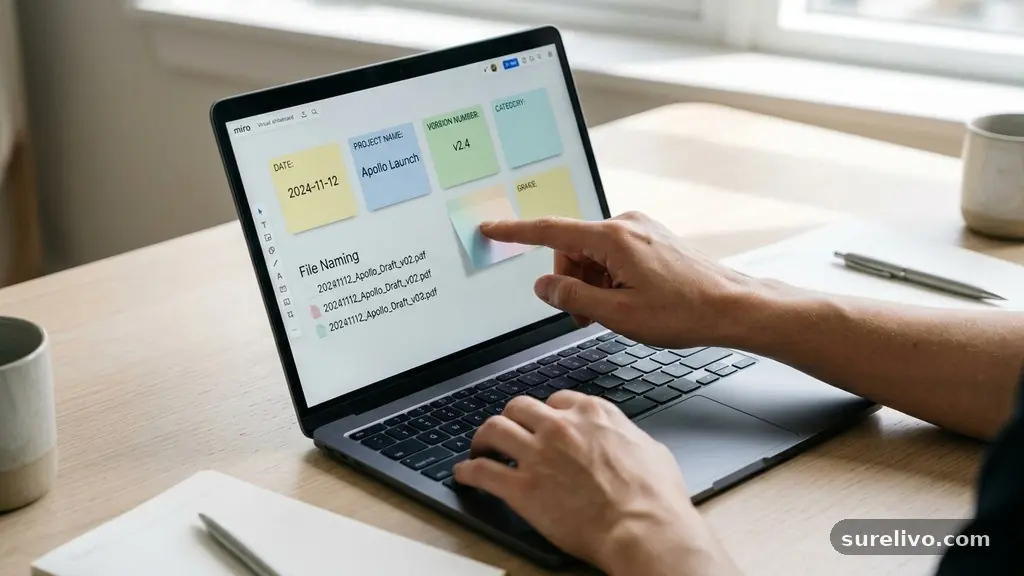
How to Make File Names Easier to Search and Sort
Making File Names Easier to Search and Sort starts with giving every file a clear, predictable identity. A useful name tells you what the item is, when it belongs, which project it supports, and whether it’s a draft or final version—without forcing you to open it first.
Good file naming conventions save time across Windows and macOS file systems, shared drives, cloud storage, and backup folders. The steps below will help you create names that work for people, search tools, alphabetical sorting, and future-you, even when a folder contains thousands of documents, images, spreadsheets, or source files.
Step 1: Decide What Information Every File Name Should Carry
Before choosing punctuation or dates, decide what a person should learn from a file name at a glance. Most useful names answer some combination of four questions: what is this, which project or client does it belong to, when was it created or updated, and what stage is it in? A project brief might need a client name, subject, date, and status, while a holiday photo may only need the event, location, and date.
Write down the categories that matter for your work. For example, a marketing team could use client-project-document-date-status, while a research group might prefer study-sample-date-measurement-version.
The goal isn’t to cram every possible detail into every name. It’s to identify the small set of details that reliably separates one file from another.
Descriptive keywords are especially valuable for search. “Invoice” is more useful than “document,” and “website-redesign” is more useful than “project.” Add terms people are likely to type into a search box, including a client, product, location, department, or subject. Avoid private information such as passwords, full payment card numbers, or sensitive medical details; file names often appear in search results, email attachments, and activity logs.
A common mistake is designing a naming system around one folder’s current contents. Consider how files will be moved, shared, archived, or separated from their original folders.
A name such as Acme-Website-Homepage-Copy-2026-03-14.docx still makes sense outside its folder. By contrast, Homepage-Final.docx quickly loses its meaning when copied into an archive.
Step 2: Put the Most Important Search Terms Near the Beginning
File names are easier to scan when their opening words identify the main subject. Start with the project, client, department, or content type that people are most likely to search for. A photographer might use Smith-Wedding-Reception-2025-06-21-001.jpg; an accountant could use Northwind-Tax-Return-2025-Draft.xlsx.
Leading terms also matter because many file managers display only part of a long name. If the useful information appears at the end, it may be hidden until the column is widened. Search tools can still find those words, but humans comparing a list of files will work faster when the first 20 to 40 characters distinguish the items.
Think about how someone would describe the file aloud. Natural language search often works well with ordinary words, so “employee-handbook,” “kitchen-renovation,” and “Q3-sales-report” are more helpful than internal abbreviations nobody remembers. If your team uses an abbreviation frequently, define it and apply it consistently rather than mixing “HR,” “Human-Resources,” and “People-Team” for the same category.
There is a useful balance between broad and narrow wording. “Report” is too broad, while a long sentence copied from the document may be difficult to scan. “Northwind-Q3-Sales-Report” carries enough context without becoming unwieldy.
Don’t begin every name with a generic word such as “File,” “Document,” or “New.” Those terms push meaningful words out of view and cause unrelated items to cluster together. If the file type itself matters, include it after the subject: Orchard-Grant-Application-2026.pdf is clearer than PDF-Orchard-Grant-Application.pdf.
Step 3: Use a Consistent Date Format That Sorts Correctly
Dates are among the most useful parts of a file name, but only when every file uses the same order. The most practical choice is the ISO 8601 date format: YYYY-MM-DD. A name such as Board-Meeting-2026-04-09-Minutes.docx sorts naturally from earliest to latest because the year comes first, followed by the month and day.
For an authoritative explanation of the standard, see the International Organization for Standardization’s ISO 8601 overview. You don’t need to include a time in every file name, but the same principle applies if your work involves multiple files created on one day. You might use 2026-04-09-1430 or add a short time-zone marker when precision matters.
Always use leading zeros for months and days. Without them, a folder may place April 10 before April 2 when it sorts alphabetically, because the characters are being compared as text rather than understood as calendar dates. The same rule applies to numbered items: use zero-padded numbers such as 001, 002, and 010 if a sequence may grow beyond nine files.
Choose one meaning for the date and document it. Is it the date the photo was taken, the contract signed, the invoice issued, or the file last revised?
A date that changes whenever someone edits a document may be less useful than the original publication date. If both matter, include both with labels, such as Policy-2025-01-15-Reviewed-2026-03-04.docx.
Mixing formats is the mistake to avoid. Names like Meeting-3-4-26, Meeting-04-03-2026, and Meeting-March-4-2026 may all be understandable, but they won’t sort as a dependable group. Decide on one format and use it across folders, teams, and years.
Step 4: Create a Naming Structure and Apply It Every Time
A consistent naming structure is a repeatable pattern, not just a collection of good-looking examples. Choose an order for each element and keep it stable. For instance, a studio might use Client-Project-AssetType-Date-Version.Extension, producing Rivera-Campaign-Banner-2026-05-12-v03.png.
Make the pattern easy to teach. A short rule might be: “Start with the client, add the project, describe the item, use YYYY-MM-DD, then add the version.” Put the rule in a team handbook or a small README file in the top-level project folder. A naming convention that lives only in one employee’s memory will drift as soon as someone joins the team or takes over a project.
Decide how to handle spaces, punctuation, accents, and symbols. Hyphens and underscores are usually safer than slashes, colons, quotation marks, question marks, or other characters that operating systems may reject or interpret specially. A hyphen makes a name easy to read, as in annual-report-2026.pdf; an underscore can be useful when a system or script treats spaces awkwardly, as in annual_report_2026.pdf.
Pick one separator rather than alternating between styles. Client-Project-Date and Client_Project_Date are both workable, but a folder filled with names that switch between hyphens, underscores, and spaces is harder to scan and automate. Avoid decorative punctuation that adds no meaning.
Another common mistake is allowing each person to interpret “final” differently. If one employee uses Final, another uses Approved, and a third uses Ready-to-send, searches become unreliable.
Define a small vocabulary for statuses and use it consistently. Better still, use version numbers and a clear status only when it adds information: Proposal-2026-04-18-v04-Approved.docx.
Step 5: Make Versions and Sequences Unambiguous
Version control begins with a simple question: can someone identify the newest trustworthy file without opening several documents? Names such as draft, final, final-new, and final-newest usually signal that the system has stopped working. A numbered approach is clearer: v01, v02, and v03.
Use leading zeros when version numbers may exceed nine. A list containing v1, v2, and v10 can sort as v1, v10, v2, which is not the order most people expect. Zero-padded numbers—v01, v02, and v10—sort correctly in ordinary alphabetical lists.
Software projects may benefit from semantic versioning, especially when files represent releases rather than ordinary drafts. The pattern MAJOR.MINOR.PATCH, such as 2.4.1, can indicate a breaking change, a feature addition, or a bug fix. It may be excessive for a one-page meeting agenda, but it is useful for code packages, templates, datasets, and published digital products.
Separate working files from approved deliverables when the distinction matters. A source file might be named Brand-Logo-2026-02-10-v07-Working.ai, while the approved export becomes Brand-Logo-2026-02-10-v01-Approved.svg. Resetting the delivery version to v01 makes sense if the exported asset is a new release stream, but teams should document that choice so nobody assumes the numbers refer to the same history.
Don’t rename files casually after they have been referenced in links, scripts, invoices, or project-management tools. A renamed file may break automated workflows or confuse collaborators. If you need to correct a naming problem, record the change, update references, and preserve a clear trail through version control or an archive folder.
Step 6: Choose Extensions, Characters, and Length with Compatibility in Mind
A file extension tells the operating system and applications what kind of file it is. Keep the original extension visible and intact: Budget-2026-04-01.xlsx is safer than changing it to Budget-2026-04-01-final and losing the indication that it is a spreadsheet. The extension isn’t a substitute for a descriptive name, but it is an important part of identification and sorting.
Use plain letters, numbers, hyphens, and underscores when files will move between Windows and macOS file systems, cloud services, servers, or command-line tools. Some environments handle spaces and accented characters perfectly well, while others may encode them awkwardly or cause issues in scripts. Conservative characters reduce surprises when a file travels outside your usual computer.
Keep names readable rather than chasing the shortest possible string. A name that is slightly longer but clear is usually better than an abbreviation such as CLNT-RPT-Q2-FNL.
At the same time, avoid copying an entire email subject line into a file name. Very long names can be truncated in file browsers, create awkward links, and become difficult to type or compare.
Watch for characters that have special meanings. Slashes may be treated as folder separators, colons can cause problems in some systems, and wildcards such as asterisks may be interpreted by search or command-line tools. Leading or trailing spaces are also troublesome, as are names that differ only by capitalization when files move between systems with different case-handling behavior.
A frequent mistake is assuming that renaming a file changes its format. Renaming photo.jpg to photo.pdf doesn’t convert the image; it only creates a misleading label. Use the proper export or conversion function, then give the resulting file a name that accurately reflects its contents.
Step 7: Build Searchable Context with Folders, Metadata, and Tags
A strong file name does not have to carry every detail. Folders, metadata and tags can provide additional context without creating enormous names. For example, a folder path such as Clients/Rivera/Website/2026/Approved can work alongside a concise file name like Homepage-Hero-2026-05-12-v02.png.
Use folders for broad, stable categories and names for details that should travel with the file. A folder called “Current Projects” may be convenient, but its meaning changes over time. A file name containing the project and date remains useful if the file is archived, attached to an email, or copied to a different drive.
Metadata can improve discovery for photographs, audio, video, documents, and research data. Camera models, authors, keywords, locations, and creation dates may already exist in embedded metadata, but don’t assume those fields will survive every export or upload. A short descriptive name provides a dependable fallback when an application strips metadata.
Tags are helpful when one file belongs to several categories. A design asset might be tagged “web,” “approved,” and “spring campaign,” while its file name remains focused on its identity.
Tags are less portable than names, though, because different operating systems and cloud services support them differently. Treat them as an extra layer, not the only way to explain a file.
Test your system with real searches. Ask a colleague to find all approved files for one client, every image from a particular month, or the latest version of a proposal without giving them the exact file name.
If they can succeed using natural language search and ordinary folder browsing, the structure is doing its job. If they need insider knowledge, revise the terms or status labels.
Step 8: Audit Existing Files and Automate the Habits That Matter
You don’t need to rename an entire archive in one exhausting session. Start with active projects and files that people use regularly. Create a small sample, apply the new pattern, and ask whether the names sort in the right order, remain readable in a narrow file-list column, and make sense when detached from their folders.
For older material, preserve a map between old and new names if other systems may still refer to the originals. A spreadsheet can record the previous name, new name, date of change, and person who approved it. This is particularly important for legal records, financial documents, published assets, and files connected to automated processes.
Templates can prevent errors at the point of creation. A project folder might include a blank naming example, while an intake form can ask for the client, project code, date, status, and version before generating a file name. Batch-renaming tools and scripts can add dates or zero-padded numbers, but test them on copies first and keep an untouched backup.
Set a short review habit. Once a month or at the end of a project, look for names containing “new,” “copy,” “misc,” or repeated “final” labels.
Those words often reveal uncertainty in the workflow. Replace them with a defined status, version number, or more precise description while the context is still fresh.
Automation should enforce a clear rule, not hide a poor one. A script that adds 2026-04-09 to every file won’t tell you whether that is the creation date, delivery date, or review date.
Define the meaning first, then automate repetitive formatting. The mistake to avoid is trusting a bulk rename without checking for duplicate names, lost extensions, unexpected character changes, or files accidentally moved into the wrong folder.
Frequently Asked Questions
Should file names use spaces, hyphens, or underscores?
Any of the three can work, but consistency matters most. Hyphens are readable and tend to behave well in web addresses and scripts, while underscores are useful in systems that treat spaces as separators. Choose one style for your environment, avoid mixing styles within the same project, and use ordinary letters and numbers when files will move across platforms.
How long should a file name be?
Make it long enough to identify the file without opening it, but short enough to scan in a file browser. A project, subject, date, and status often provide sufficient context.
Remove repeated words, unnecessary articles, and copied email text. Remember that the full path includes folder names too, so a short file name inside a deeply nested structure may still create a very long path.
Is YYYY-MM-DD better than MM-DD-YYYY?
Yes, if files need to sort chronologically. The YYYY-MM-DD format places the largest time unit first and uses leading zeros, so alphabetical sorting matches calendar order. It also avoids confusion between day-first and month-first conventions used in different countries.
Should I put the file type in the name?
Usually, the file extension already identifies the type, so adding “PDF” or “Word” may be unnecessary. Include a format word when it distinguishes deliverables, such as Logo-Print-SVG and Logo-Web-PNG, but don’t use a descriptive label as a replacement for the correct extension.
What should I do with files called “final” or “copy”?
Inspect them before renaming. Replace vague labels with a version number, date, or approved status, such as Proposal-2026-05-08-v03-Approved.docx. If several files are genuinely different outputs, describe the difference—“client-copy,” “internal-review,” or “press-ready”—rather than adding another vague word like “final2.”
Make the System Easy to Keep
Making File Names Easier to Search and Sort is less about finding a clever formula than choosing a few meaningful details and applying them every time. Start with descriptive keywords, a stable naming structure, ISO dates, clear versions, safe characters, and a short team rule that everyone can follow.
Put the system into practice with your next active project, then test it by searching, sorting, sharing, and archiving a sample of files. Small improvements compound quickly: a folder that once took ten minutes to understand can become obvious in seconds, and making File Names Easier to Search and Sort becomes a natural part of creating work rather than a cleanup task saved for later.