How to Check Whether a Browser Extension Still Needs Permission
Checking Whether a Browser Extension Still Needs Permission is a practical privacy habit, especially when an add-on can read websites, change page content, or view browsing activity. Permissions that made sense months ago may no longer match how you use the tool today.
A quick review can show which access is essential, which can be restricted, and which extension should be removed altogether. You’ll learn how to inspect the request, compare it with the extension’s actual job, test safer settings, and recognise warning signs without breaking useful browser features.
Step 1: Identify the Extension and Its Current Job
Start by naming the extension you’re reviewing and describing what you expect it to do now. Don’t rely only on its name or icon. “Productivity helper” could mean a simple new-tab tool, a page-reading assistant, a password manager, or software that monitors every website you visit. Those roles require very different levels of access.
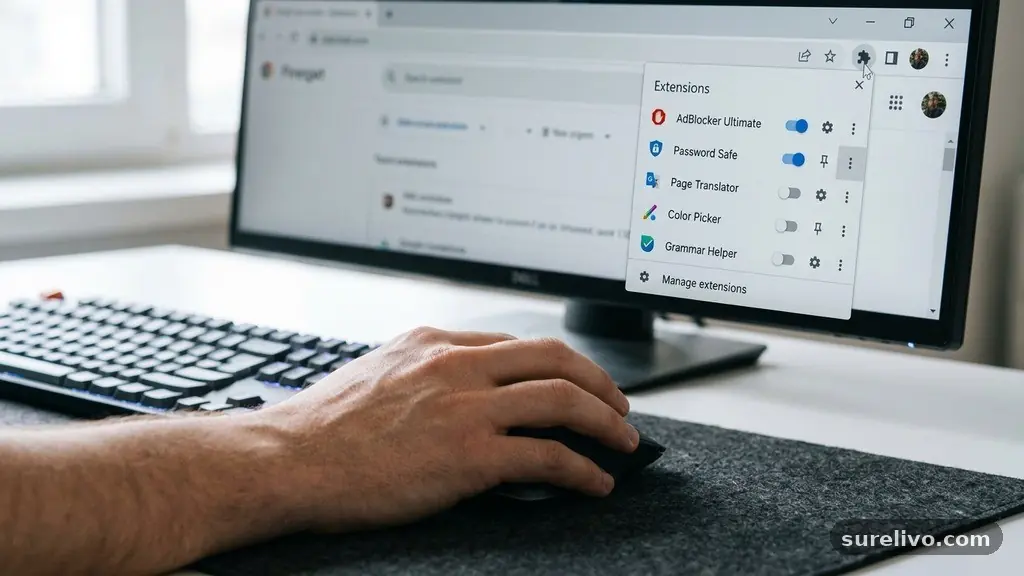
Open the browser’s extensions page and check the add-on’s name, publisher, version, installation date, and recent update information. In Chrome, type chrome://extensions into the address bar.
Firefox Add-ons can be reviewed through the Add-ons and Themes area, while Microsoft Edge extensions appear at edge://extensions. Safari web extensions are managed through Safari’s settings and the macOS or iOS extension controls, depending on the device.
Write down the extension’s main benefit in one sentence. For example: “It fills addresses into checkout forms,” “It blocks known advertising domains,” or “It saves articles for later.” Then compare that sentence with what the extension appears to access. A tool that only changes the appearance of a new-tab page probably shouldn’t need to read the contents of every website.
Why it matters: permissions should be judged against a specific function, not against marketing language. An extension may have started with one purpose and later added features, changed ownership, or expanded its data practices.
Common mistake to avoid: assuming a familiar brand is automatically safe. Reputable publishers can change an extension’s ownership, code, business model, or requested access. Check the current version and current privacy explanation rather than relying on what the add-on did when you first installed it.
Step 2: Read Every Permission in Plain English
Next, inspect the browser extension permissions themselves. Look for wording such as “read and change all your data on websites you visit,” “read your browsing history,” “manage your downloads,” or “communicate with cooperating native applications.” The phrasing can sound broad because browsers describe the maximum capability the extension may use, not necessarily the action it performs every minute.
Translate each request into a practical question. If an extension asks for host permissions covering every site, it may be able to access pages across the web. If it requests downloads access, ask whether its feature actually saves files.
If it wants clipboard access, consider whether copying and pasting is central to its purpose. A permission isn’t automatically malicious, but it should have a clear reason.
Some browsers use different labels for similar powers. Chrome Extensions and Microsoft Edge extensions may present site access as “On all sites,” “On specific sites,” or “When you click the extension.” Firefox may describe access to data on particular websites.
Safari may ask for permission to access a webpage or interact with browsing data. The wording varies, so focus on the capability behind the label.
The official Chrome documentation on declaring extension permissions explains how permissions and host access are defined, which is useful when a request seems unclear. You don’t need to understand every technical detail, but the distinction between a general capability and access to specific websites can make the review much easier.
Common mistake to avoid: treating a long permission list as proof of wrongdoing or treating a short list as proof of safety. A password manager may legitimately need sensitive access, while a small-looking permission can still expose valuable information. Context matters more than the number of words on the prompt.
Step 3: Compare Required, Optional, and Temporary Access
Many people assume every permission shown during installation is permanently necessary. That isn’t always true.
Developers can design an extension with optional permissions, allowing the core feature to work first and requesting extra access only when you activate a related function. This arrangement gives you a better chance to make an informed choice.
Look for a distinction between permissions required for basic operation and permissions requested after you select a feature. An extension that reads page content only when you click “summarise this article” may use an activeTab permission or another temporary access pattern.
That is narrower than having constant access to every page. The exact behaviour depends on the browser and the extension’s implementation, so confirm what the prompt says before approving it.
Some add-ons let you grant access one site at a time. A translation tool might work on a news website but not need access to your bank, email, or workplace portal.
A coupon extension could be limited to shopping sites. A writing assistant may be useful on a document service but unnecessary on private medical or financial pages.
Ask three questions: Does the extension work without this permission? Is the permission requested only when a feature needs it? Can access be granted for a selected site instead of all sites?
If the answer to the first question is yes, keep the permission disabled until you need it. If the extension repeatedly requests broad access for a minor feature, treat that behaviour as a reason for closer scrutiny.
Common mistake to avoid: clicking “Allow” simply to dismiss a prompt. If the extension later needs access for a feature you genuinely want, you can usually approve it at that point. Delaying a request is not the same as breaking the add-on.
Step 4: Review Site Access and Narrow It
Now open the extension’s site access settings. This is where you can often turn a broad permission into a limited one.
Common choices include access on all websites, access only on selected websites, or access only after you click the extension’s button. Choose the narrowest setting that still supports the feature you use.
For example, suppose a page-highlighting extension is useful on three research websites. There’s little reason to let it run on webmail, online banking, social networks, and every private dashboard you visit.
Select the three research domains if the browser offers that option. If the extension works through a button click, choose that mode instead of continuous access.
Pay attention to subdomains and related services. Limiting access to example.com may or may not include app.example.com, depending on the browser’s interface and the extension’s rules.
A tool that works on a public documentation site might also request access to an account portal operated by the same company. Read the actual domain list rather than assuming two sites have identical privacy implications.
After narrowing access, visit an ordinary test page and try the feature. Then test a page where the extension should not run.
You may notice a missing icon action, a prompt to grant access, or no visible change. That result tells you whether the restriction is working as intended.
Common mistake to avoid: selecting “specific sites” but leaving a large wildcard pattern or dozens of unnecessary domains in the list. A narrow label doesn’t guarantee a narrow result. Remove old websites you no longer use and review the list after major extension updates.
Step 5: Check for Changes, Updates, and New Ownership
Permission reviews shouldn’t happen only when an extension is first installed. Browser extensions can receive updates that add capabilities, alter their privacy policy, or change how collected information is handled.
Check the extension’s update history, publisher details, store description, and any notice about new permissions. A request that appears suddenly deserves an explanation.
Compare the current permissions with what you remember approving. You might see a new host permission, broader access to browsing data, or a request to interact with another application on your computer.
Sometimes the change supports a genuine feature, such as syncing across devices or adding a PDF tool. Sometimes the explanation is vague, promotional, or absent.
Ownership matters too. An extension can be sold to a different company without changing its name or icon. Search the publisher’s current website, privacy policy, and support page from the extension store listing.
Look for clear statements about data collection, retention, advertising, analytics, and sharing with third parties. If the publisher no longer maintains a support page or the privacy policy has disappeared, that weakens the case for keeping broad access enabled.
Browser stores may display warnings, but a clean store page is not a permanent guarantee. Security reviews have a limited point in time, and an extension can evolve after approval. Use the store as one source of evidence alongside the requested permissions and the extension’s actual behaviour.
Common mistake to avoid: accepting a new permission without reading the change because the extension has worked well in the past. Past usefulness doesn’t automatically justify future access. If the new capability isn’t relevant, disable the extension, restrict it, or find a replacement.
Step 6: Look for Data Collection and Privacy Risks
Permissions describe what an extension may be able to access; the privacy policy and observed behaviour help explain what it does with that access. A browser extension that can read page contents might encounter searches, messages, health information, payment details, or confidential work documents. Even if the software claims to use data only for a feature, transmission to a remote server creates another point to evaluate.
Read the data practices section for specific answers. Does the extension collect browsing history, page content, clicks, search terms, IP addresses, or device identifiers? Is information stored locally, sent to the publisher, shared with analytics providers, or used for personalised advertising?
Does the policy explain deletion, retention, encryption, and account closure? Vague phrases such as “improve services” don’t tell you much by themselves.
Think about the sensitivity of the sites where the extension can operate. Broad host permissions are more concerning for an extension that can see banking, healthcare, employment, education, or private communication pages. Incognito access deserves a separate check because private browsing does not make a poorly designed extension harmless; it may still observe activity if you explicitly allow it.
Consider the principle of least privilege: give software only the access it needs, for only as long as it needs it. Disable incognito access unless the extension has a clear purpose there.
Turn off synchronisation if it sends settings or history to an account you don’t use. Remove saved permissions from sites containing sensitive information.
Common mistake to avoid: focusing only on whether an extension is “free.” A free tool may be supported by advertising, analytics, subscriptions, or data-based business arrangements. Price doesn’t reveal the privacy cost; the data practices and access scope do.
Step 7: Test, Monitor, and Decide Whether to Keep It
Once you’ve narrowed permissions, test the extension under normal conditions. Use a harmless page first, then try the feature that matters most.
If it needs a particular site, confirm that the feature works there and that it stays inactive elsewhere. Watch for unexpected redirects, injected advertising, changed search settings, unusual sign-in prompts, excessive battery use, or browser slowdowns.
Keep a simple record of the decision. Note the extension’s name, version, permitted sites, incognito setting, and the reason you kept it.
This is especially helpful on a work computer or a family device where several add-ons may be installed. A short record also makes future permission changes easier to spot.
If an extension fails after access is restricted, decide whether the feature is genuinely worth restoring broad permissions. Sometimes the design is simply inflexible.
In that case, compare alternatives that offer optional permissions, local processing, clearer privacy terms, or a smaller host list. An extension that refuses to function without access to every website may not be the best fit for privacy-conscious use.
Remove extensions you no longer use. Disabling one is useful for troubleshooting, but uninstalling it eliminates its stored settings and future ability to run.
Check related browser settings afterward, including the default search engine, new-tab page, notification permissions, and saved site access. A suspicious add-on may have changed more than its own permission record.
Common mistake to avoid: assuming that one successful test proves long-term safety. Recheck after updates, ownership changes, or a noticeable change in behaviour. Permission management works best as a small recurring habit rather than a one-time cleanup.
How Permission Reviews Differ Across Browsers
The basic reasoning is consistent, but each browser presents access controls differently. Chrome usually exposes extension details, site access, and incognito access from the extensions page or the extension’s menu.
Chrome Extensions may also show a prompt when a feature first needs a permission. That prompt is useful because it can reveal whether access is tied to a specific action rather than granted permanently.
Firefox provides controls through its Add-ons and Themes interface, and individual extensions may offer permissions or privacy information on their listing. Firefox can also show warnings when an add-on requests access to websites or browser data. Review the site list carefully; an extension may be useful on one domain while unnecessary on the rest of the web.
Microsoft Edge extensions generally use a Chromium-style permission model, so its site access choices may look familiar to Chrome users. Edge’s own privacy and tracking controls are separate from extension permissions, however. Restricting an extension doesn’t replace reviewing browser tracking settings, notifications, downloads, or installed applications.
Safari web extensions are managed differently because Safari integrates extension controls with Apple’s system settings. You may see choices for allowing access on a website, on all websites, or for a particular session. Read the wording closely, especially when an extension asks to access browsing history or to run in private browsing windows.
Don’t assume a setting made on one device applies everywhere. Browser synchronisation may copy extensions, but permission decisions can depend on the operating system, browser version, and individual site settings. After signing into a new laptop or phone, repeat the review instead of assuming the old restrictions followed you.
Warning Signs That Call for Removal
Some permission requests deserve more than a simple restriction. Be cautious if an extension’s purpose is unclear, its publisher has changed without explanation, or its privacy policy doesn’t describe what happens to browsing data. A tool that asks for access to all websites while offering a tiny convenience may have a poor balance between benefit and exposure.
Unexpected behaviour is another strong signal. Watch for search-engine changes, new tabs you didn’t request, injected links, pop-ups that appear outside the extension’s normal function, or login pages that look subtly different. Frequent crashes, high memory use, and unexplained network activity don’t prove malicious intent, but they justify disabling the add-on while you investigate.
Pay attention to permission changes that arrive with pressure. A message saying you must grant access immediately, enable incognito access, or install a companion program before a simple feature works should make you pause. Legitimate software can require additional components, but it should explain the need clearly and allow you to make an informed choice.
If you decide to remove an extension, first export anything you genuinely need, such as saved snippets or settings. Then uninstall it through the browser’s official extension manager.
Change passwords if the extension had access to sensitive pages and you suspect misuse, and review account activity where relevant. On a managed work device, report the issue to your IT team rather than installing an unapproved replacement.
Removal is not an overreaction when the benefit is small and the access is broad. Software should earn continued trust through clear purpose, restrained permissions, transparent updates, and predictable behaviour.
FAQ
Can an extension work without all of its requested permissions?
Often, yes. Some features may work with basic access while advanced features require optional permissions.
Try denying or narrowing access, then test the function you actually use. If the extension asks again, read the new prompt and decide whether that particular feature justifies the added capability.
Is access to all websites always dangerous?
No. Some tools, such as page translators, accessibility readers, and content blockers, may need broad host permissions to provide their main function.
However, broad access increases the possible privacy impact, so the publisher should explain why it’s required. If a smaller site list or click-to-run mode works, prefer that option.
What does the activeTab permission mean?
The activeTab permission generally allows an extension to interact with the page you’re currently viewing after you take an action, such as clicking its toolbar button. It is narrower than permanent access to every website, though the exact behaviour depends on the browser and extension. Read the browser’s prompt and the add-on’s explanation rather than assuming all active-tab designs are identical.
Should I allow an extension to run in incognito mode?
Only if you need its function during private browsing and you trust its data practices. Incognito access can allow the extension to observe or modify pages in those windows, so it shouldn’t be enabled automatically. Check the setting after installation and after browser updates.
How often should browser extension permissions be checked?
Review them whenever an extension updates, requests new access, changes ownership, or starts behaving differently. A broader check every few months is sensible if you have many add-ons. Remove anything unused, and repeat the review when setting up a new device or restoring browser synchronisation.
Conclusion
Checking Whether a Browser Extension Still Needs Permission comes down to matching access with purpose. Review the current request, limit host permissions, treat optional and temporary access carefully, and pay attention to updates, ownership, incognito access, and data collection.
Start with one extension you rarely use, test its narrowest setting, and remove it if the benefit no longer outweighs the risk. That small step can make your browser quieter, safer, and easier to understand. If a permission prompt still seems unclear, pause before accepting it and investigate the feature that triggered it.