How to Find Apps That Keep Running After You Close Them
If you’re finding Apps That Keep Running After You Close Them, the first thing to know is that closing a window doesn’t always end an app’s work. Phones and computers may leave background processes active for notifications, syncing, location updates, or quick relaunches.
Identifying those apps can improve battery life, reduce mobile data use, and make a slow device feel responsive again. The steps below show where to look on Android, iPhone, Windows, and macOS, how to interpret what you see, and when stopping an app could create a new problem.
Step 1: Decide What “Still Running” Means on Your Device
Before changing settings, define the behavior you’re trying to investigate. An app may remain visible in a recent apps menu without actively using the processor. It might be suspended in memory, waiting for the next launch, while another app continues using background processes for music playback, file uploads, navigation, or notifications.
There are several clues that an app is genuinely active. Your battery percentage may drop unusually quickly, mobile data use may rise, the device may feel warm while idle, or a persistent notification may remain after the main app window disappears. On a computer, an icon in the system tray or menu bar can also indicate that the program is still running.
Take note of the exact symptom and when it happens. For example, a podcast app that continues playing audio is behaving differently from a shopping app that quietly checks for order updates. That distinction matters because one activity is intentional, while the other may be unnecessary background app activity.
Common mistake to avoid: assuming that every app shown in the recent apps menu is consuming power. On many phones, that screen is simply a list of recently opened apps, not a live list of active programs. Use battery, memory, or process information to confirm what is happening.
Step 2: Check the Android Running Apps and Battery Screens
Android provides several useful places to find applications that continue working after their interface is closed. The exact labels vary by manufacturer, but start with Settings > Battery.
Open the battery usage view and inspect which apps consumed power during the last 24 hours or since the previous charge. A high percentage does not automatically mean an app is misbehaving; navigation, video, camera, and music apps naturally use more energy.
Next, check Settings > Apps, choose an application, and review its battery settings. You may see choices such as unrestricted, optimized, or restricted background usage. Restricted access can prevent an app from checking for updates or sending timely alerts, so use it for apps that don’t need frequent background work rather than applying it to everything.
Some Android devices show Android running apps through a developer option or a system dashboard. On supported phones, enabling Developer options may reveal running services, memory use, and cached processes. Cached processes usually aren’t a concern: Android keeps them available so apps open faster and removes them when resources are needed.
The official Android background optimization documentation explains why the operating system limits background work and why manufacturer settings can differ. Reading it is especially useful if an app stops syncing after you restrict it.
Common mistake to avoid: judging an app only by its presence in a running-services list. Look for repeated battery use, active network traffic, unusual memory pressure, or a service that remains active long after its main task should have ended.
Step 3: Inspect iPhone Background App Refresh and App Activity
On an iPhone, swiping an app away from the app switcher isn’t always the best way to control background behavior. iOS normally suspends most apps after they leave the foreground, but selected apps can still refresh content, use location services, complete uploads, or receive remote notifications. Music, navigation, calls, and other time-sensitive functions may continue by design.
Open Settings > General > Background App Refresh to see which apps are allowed to update when you aren’t using them. You can disable the feature for individual apps or turn it off more broadly. An app with background refresh disabled may still receive notifications through Apple’s notification system, but it won’t be able to refresh all content in advance.
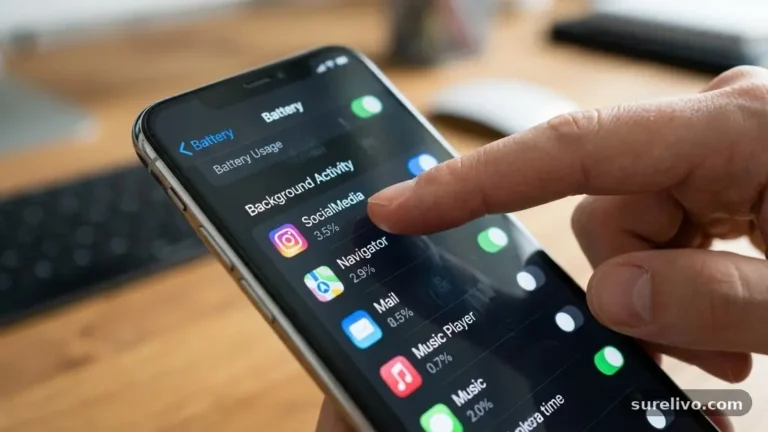
Then visit Settings > Battery. The activity graph can distinguish screen usage from background activity, and the app list may show labels such as “Background Activity.” That information is more useful than repeatedly opening and closing the app switcher because it shows whether the app has actually consumed power away from the screen.
Location permissions deserve special attention. Go to Settings > Privacy & Security > Location Services and review apps allowed to use location always, while using the app, or never. A weather, mapping, fitness, or delivery app may need location access, but a simple game usually doesn’t.
Common mistake to avoid: force-closing every app as a routine. iOS may need to reload an app from scratch the next time you open it, which can use more energy than leaving a suspended app alone. Close an app when it is frozen, misbehaving, or clearly continuing an unwanted task—not merely because it appears in the switcher.
Step 4: Use a Task Manager or Activity Monitor on a Computer
Windows and macOS offer a clearer view of active programs because you can inspect processes directly. On Windows, open Task Manager with Ctrl + Shift + Esc.
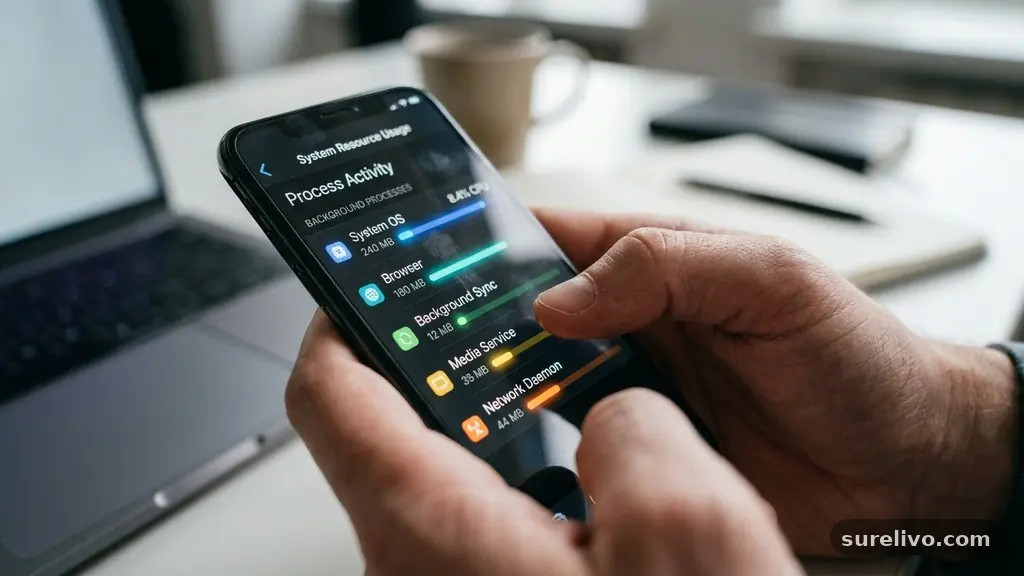
The Processes tab shows applications, background processes, and Windows processes, along with CPU, memory, disk, network, and power usage. Sort by a resource column to find what is active right now.
An app may close its main window while leaving a helper process behind. Cloud storage tools, messaging clients, game launchers, printer utilities, and update services often work this way.
Check the publisher name and file description before ending anything. A familiar app name can still have several separate processes, including one responsible for syncing or notifications.
On macOS, open Applications > Utilities > Activity Monitor. This app activity monitor displays CPU, memory, energy, disk, and network information. The Energy tab is particularly useful for identifying software that keeps drawing power on a MacBook, while the Network tab can reveal a program repeatedly sending or receiving data.
Use the Quit command inside the application first whenever possible. If the program doesn’t respond, select its process in Task Manager or Activity Monitor and use End Task or Force Quit. Ending a process is appropriate for a frozen app, but it can interrupt an upload, lose unsaved work, or leave a file incomplete.
Common mistake to avoid: terminating a process solely because its name looks unfamiliar. System processes often have technical names, and stopping one can destabilize the operating system. Research the publisher or file location using a trusted source, and avoid deleting files simply because they appeared in the process list.
Step 5: Examine Startup Applications, Auto-Start Apps, and Tray Controls
Some apps don’t remain open because you forgot to close them. They launch automatically when the device starts, signs in, or detects a particular event.
Windows calls these startup applications, while Android manufacturers may describe similar behavior as auto-start apps. On macOS, the related setting is found under Login Items.
In Windows, open Task Manager and choose the Startup apps tab. Review the enabled entries and check their startup impact. A cloud drive or password manager may be worth keeping enabled, while an old game launcher, meeting tool, or vendor updater may not need to start every time you sign in.
On macOS, go to System Settings > General > Login Items. You can remove apps that open automatically and review background items that are allowed to perform tasks even when their windows aren’t open. Turn off one item at a time so you can identify whether a useful feature—such as automatic backups—has been affected.
On Android, look in the device’s battery, app management, or security settings for auto-launch controls. The wording is not consistent across Samsung, Xiaomi, OnePlus, Motorola, and other brands. If there is no dedicated setting, inspect battery usage and notification permissions instead of installing an untrusted cleaner app that promises to manage everything.
System tray apps are easy to miss on Windows because they sit near the clock, sometimes behind the hidden-icons arrow. Right-click an icon to find options such as Exit, Pause syncing, or Open at startup. A macOS menu bar icon provides a similar clue.
Common mistake to avoid: disabling every startup item to make boot time faster. Security tools, backup software, accessibility utilities, and password managers may perform important work before you open their main window. Decide based on the app’s role, not just its startup impact rating.
Step 6: Review Permissions, Notifications, and Scheduled Activity
An app can appear to keep running because the operating system permits it to react to events. App permissions determine what those events can trigger.
Review access to location, Bluetooth, nearby devices, contacts, microphone, camera, files, and mobile data. Removing unnecessary permissions can reduce background activity and also limits what the app can do if it is compromised.
Notifications provide another useful clue. A persistent notification may be legitimate, such as a VPN connection, active download, music player, navigation session, or security scan.
It can also reveal that an app has an ongoing service you didn’t realize was enabled. Tap or long-press the notification to see which app created it and whether that channel can be silenced without disabling all alerts.
Check background data settings as well. Android usually lets you prevent an app from using mobile data in the background, while iPhone provides per-app cellular data switches.
On Windows and macOS, firewall or network-monitoring settings may show which programs connect regularly. Repeated connections aren’t automatically suspicious, but an app with no obvious need for network access deserves closer inspection.
Some applications schedule tasks for later. Backup tools may run overnight, email clients may sync on a timer, and photo services may upload whenever the device is charging and connected to Wi-Fi. Read the app’s own settings for sync frequency, automatic downloads, cloud backup, and “run in background” choices.
Common mistake to avoid: blocking notifications when you really need to stop the underlying activity. Muting an alert doesn’t necessarily end a service. If you want the work to stop, change the sync, location, background data, or scheduled-task setting that caused it.
Step 7: Apply Battery Optimization Carefully and Confirm the Result
Once you’ve identified an app that remains active unnecessarily, make the smallest change that addresses the problem. Battery optimization is often safer than force stop because it tells the operating system to limit background work while preserving normal access when you open the app. This is a good first choice for shopping, social, news, and casual utility apps that don’t need instant updates.
Use force stop when an app is stuck, repeatedly crashing, overheating the device, or continuing a task that you deliberately want to end. Afterward, reopen it and check whether the problem returns. Force stop usually prevents the app from doing more work until you launch it again, although operating-system services or related components may still operate separately.
For apps that need dependable background behavior, be more cautious. Messaging, alarms, navigation, health tracking, accessibility tools, password managers, backup clients, and wearable integrations may fail if you restrict them. A delayed notification can be more inconvenient than the small amount of battery consumed by their background services.
Change one setting at a time, then observe the device for at least part of a normal day. Compare battery usage, notification timing, data consumption, and whether the original symptom returns.
If the app behaves normally after optimization, you have a practical solution. If it doesn’t, undo the change before trying a different control.
| Symptom | First place to check | Likely adjustment |
|---|---|---|
| Battery falls while the phone is idle | Battery usage and background activity | Restrict background use or review location access |
| Notifications arrive late | Battery optimization and notification permissions | Allow background activity for essential apps |
| Program returns after every restart | Startup applications or Login Items | Disable automatic launch if the feature isn’t needed |
| Computer fan runs after closing a window | Task Manager or Activity Monitor | Quit the helper process or change the app’s background setting |
Common mistake to avoid: making several changes at once. If you disable notifications, restrict data, force stop the app, and remove startup access together, you won’t know which action solved the issue—or which one created a new problem.
Step 8: Investigate Apps That Reopen or Resist Closing
Some programs are designed to remain available even after their windows disappear. Communication clients may wait for messages, cloud storage tools may finish syncing, and security software may monitor files continuously. In those cases, the right answer isn’t always to eliminate the background process; it may be to adjust how often it works or which events wake it.
If an app repeatedly restarts after you force stop it, check for companion software. A launcher, update service, device-management tool, browser extension, or scheduled task may be starting it again. On Windows, Task Scheduler can reveal recurring jobs.
On macOS, Login Items and the app’s own preferences are useful starting points. Android users should look for related permissions and manufacturer auto-launch controls.
Unexpected background behavior can also indicate an outdated or poorly configured app. Install updates from the official app store or the developer’s legitimate website, then restart the device. If the behavior began after a recent update, read the app’s release notes or support pages before uninstalling it; a known syncing feature may have changed.
Security deserves attention if the app is unfamiliar, consumes resources continuously, displays unusual advertisements, or connects to networks without a clear reason. Run the device’s built-in security scan, remove software you don’t recognize, and avoid “RAM booster” utilities that aggressively kill processes. Those tools often create more work by forcing apps and services to restart repeatedly.
Common mistake to avoid: treating persistence alone as proof of malware. Legitimate apps often need a helper process. Look at the publisher, installation source, permissions, network behavior, and whether removing the app resolves the issue before drawing a conclusion.
FAQ: Finding Apps That Keep Running After You Close Them
Does closing an app from the recent apps menu stop it completely?
Not always. On Android and iPhone, the recent apps menu primarily shows recently used software, and the operating system may suspend, restart, or continue parts of an app depending on its function.
Music, navigation, uploads, notifications, and location services can remain active. Battery usage, background activity, or process tools provide better evidence than the app switcher alone.
Is force stopping an app safe?
Force stopping is generally safe for a frozen or misbehaving app, but it ends active work immediately. Unsaved content, uploads, navigation, or data synchronization may be interrupted. Use it as a troubleshooting step rather than a daily routine, and avoid force-stopping essential services such as alarms, accessibility tools, security software, or backup apps unless you understand the consequences.
Why does an app use battery even when I haven’t opened it?
It may refresh content, check for messages, access location, sync files, process notifications, or run a scheduled task. An app may also be part of a larger service, such as cloud backup or a wearable connection. Check the battery screen, permissions, background refresh settings, and the app’s own sync controls to find the specific cause.
Should I disable background activity for every app?
No. Restricting every app can delay messages, break automatic backups, interfere with health tracking, and prevent navigation or wearable features from working properly.
Start with apps that show unusual battery or data use and don’t provide a service you need while the app is closed. Leave essential, time-sensitive apps unrestricted if reliable updates matter.
What if I can’t identify a process in Task Manager or Activity Monitor?
Check its publisher, file path, description, and installed application. Search the exact process name through a reputable security or software reference rather than downloading a random process-killing utility.
Don’t delete system files based only on an unfamiliar name. If the process consumes substantial resources or behaves suspiciously, update security software and consider professional technical support.
Use the Evidence, Then Choose the Smallest Fix
Finding Apps That Keep Running After You Close Them becomes much easier when you separate a visible app shortcut from genuine background work. Check battery or energy use, inspect processes, review startup applications, and examine permissions before deciding what to change.
Start with a reversible adjustment such as battery optimization, background refresh, or auto-start control. Keep essential services running, confirm the result after one change, and use force stop only when an app is genuinely stuck or intrusive. With that measured approach, you can reduce wasted power and data without sacrificing the features you rely on.